Welcome to Path 1: Direct Opportunities
This training guide walks you through the complete lifecycle of a Direct Opportunity in the Royal Silicon Semiconductor Salesforce application. By the end of this guide, you will understand how to create and manage Opportunities, build Quotes with detailed pricing, and convert approved Quotes into Orders.
The Direct Opportunity path is the primary workflow for sales representatives working directly with customers. It covers everything from initial opportunity creation through demand forecasting, bill of materials management, AI-powered market analysis, and the full quote-to-order cycle.
The Direct Opportunity Flow
At its core, the Direct Opportunity workflow follows three major stages:
Create an Opportunity, generate one or more Quotes with pricing, then convert the approved Quote into an Order.
Quick Reference: Opportunity Tabs
The Opportunity record contains 7 primary tabs plus an overflow Quotes tab. Each tab provides a specialized view of the opportunity data.
| # | Tab Name | Purpose |
|---|---|---|
| 1 | Details | Core opportunity information: summary, project details, marketing data, and system fields |
| 2 | Einstein Market Analysis | AI-powered market intelligence with investor briefs, bull/bear cases, and forecast accuracy |
| 3 | Bill of Material | BOM Builder for managing components, sockets, pricing (UPA/SOM%/ASP/Revenue), and cascading |
| 4 | Forecast | Demand Forecast Workbench with 12 models, interactive charts, and period-by-period data |
| 5 | Einstein Opportunity Update | AI-generated summaries and recommended actions for the opportunity |
| 6 | Products | Opportunity Product line items — add, edit, or remove products tied to this opportunity |
| 7 | Activities | Activity timeline with options to log calls, send emails, and create tasks |
| + | Quotes (overflow) | Related Quotes list — view, create, and navigate to associated Quote records |
Quick Reference: Quote Tabs
The Quote record also contains 7 tabs. These tabs focus on line-item pricing, competitive analysis, approvals, and related data.
| # | Tab Name | Purpose |
|---|---|---|
| 1 | Details | Quote information, shipping/billing addresses, and financial totals |
| 2 | Quote Line Editor | Editable grid for product lines with instant pricing, discount management, and approval flags |
| 3 | Pricing Workbench | Price analysis and optimization tools for fine-tuning deal pricing |
| 4 | Competitive Analysis | Competitor comparison features to position pricing against market alternatives |
| 5 | Price Tiering Workbench | Volume-based tiered pricing configuration for quantity breaks |
| 6 | Approvals | Line-level approval management with AI evaluation and multi-level approval workflows |
| 7 | Related | Related lists including Quote Line Items and other associated records |
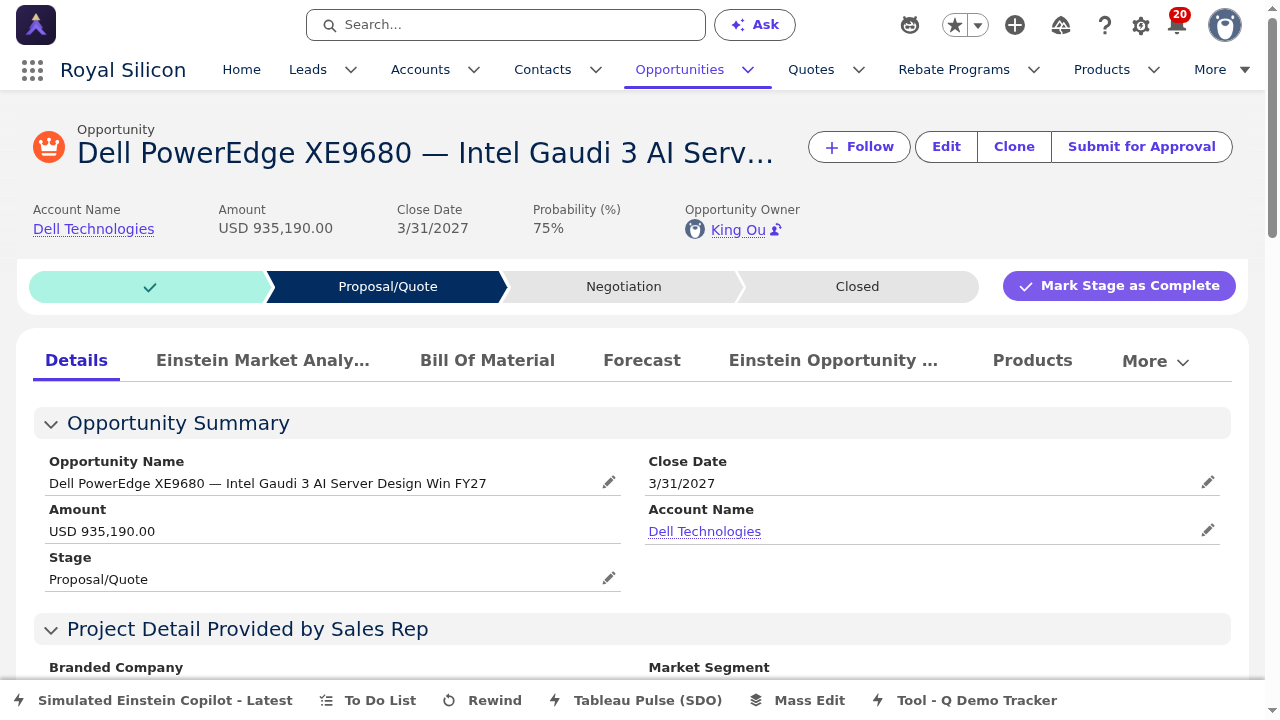
Opportunity Overview Screenshot
Below is an overview of the Opportunity record as it appears in Salesforce. Notice the Path Assistant at the top showing the opportunity stage progression, and the tab navigation below it.
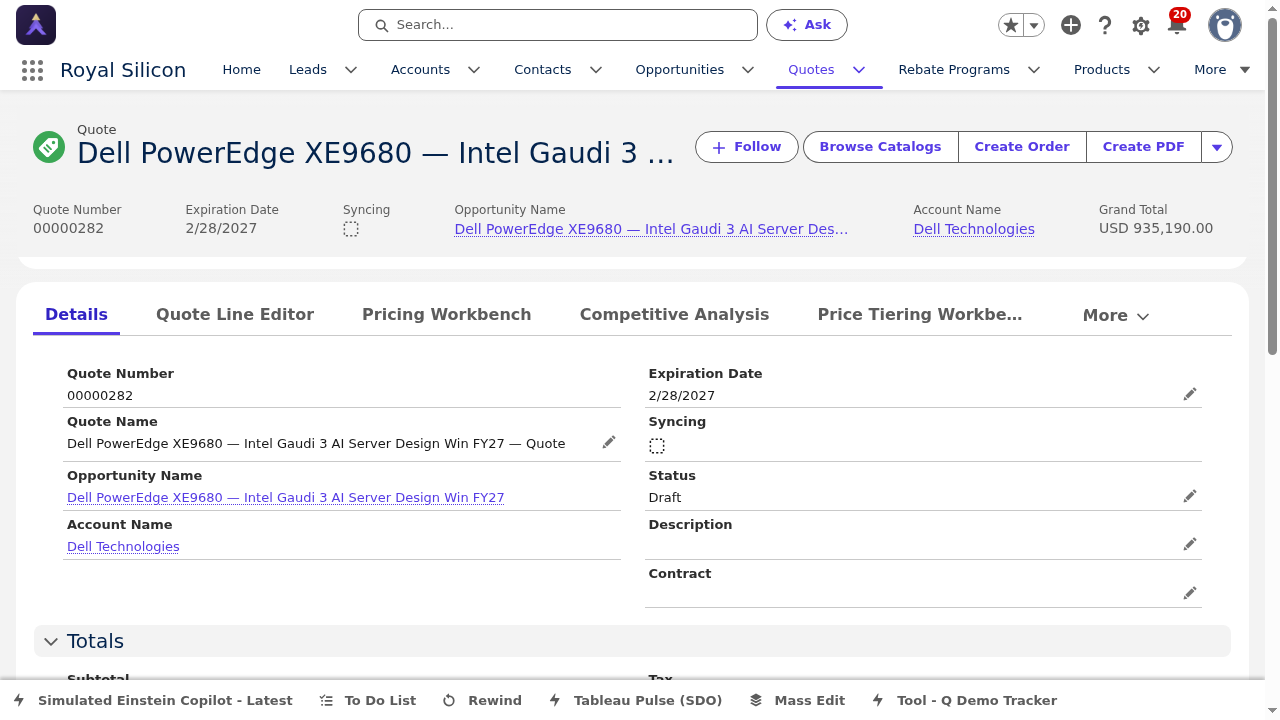
Quote Overview Screenshot
Below is an overview of the Quote record. Note the action buttons at the top (Browse Catalogs, Create Order, Create PDF) and the tab navigation.
Opportunity Record — All Tabs
This section covers every tab on the Opportunity record in detail. Each tab is documented with its purpose, key features, best practices, and screenshots.
1 Details
The Details tab is the primary landing tab for any Opportunity record. It provides a comprehensive snapshot of the opportunity including the Opportunity Summary, Project Detail, Opportunity Information fields, Data Triggered Events, Marketing Information, and System Information sections. This is where you will find and edit all core field values for the opportunity.
Each section can be expanded or collapsed. The Opportunity Summary at the top provides the most critical information at a glance, while lower sections contain supplementary metadata and system-managed fields.
- Opportunity Summary — Displays Account, Amount, Close Date, Stage, and Probability fields
- Project Detail — Captures project-specific semiconductor data (end application, volumes, timelines)
- Opportunity Information — Standard and custom fields for deal tracking and categorization
- Data Triggered Events — Automated actions and notifications based on field value changes
- Marketing Information — Campaign and lead source tracking to tie opportunities to marketing efforts
- System Information — Created date, last modified, record type, and owner metadata
Always complete the Project Detail section before advancing the opportunity stage. Accurate project details improve forecast accuracy and help the Einstein AI features generate better market analysis and recommendations. Fill in the end application and target volume early for maximum benefit.
2 Einstein Market Analysis
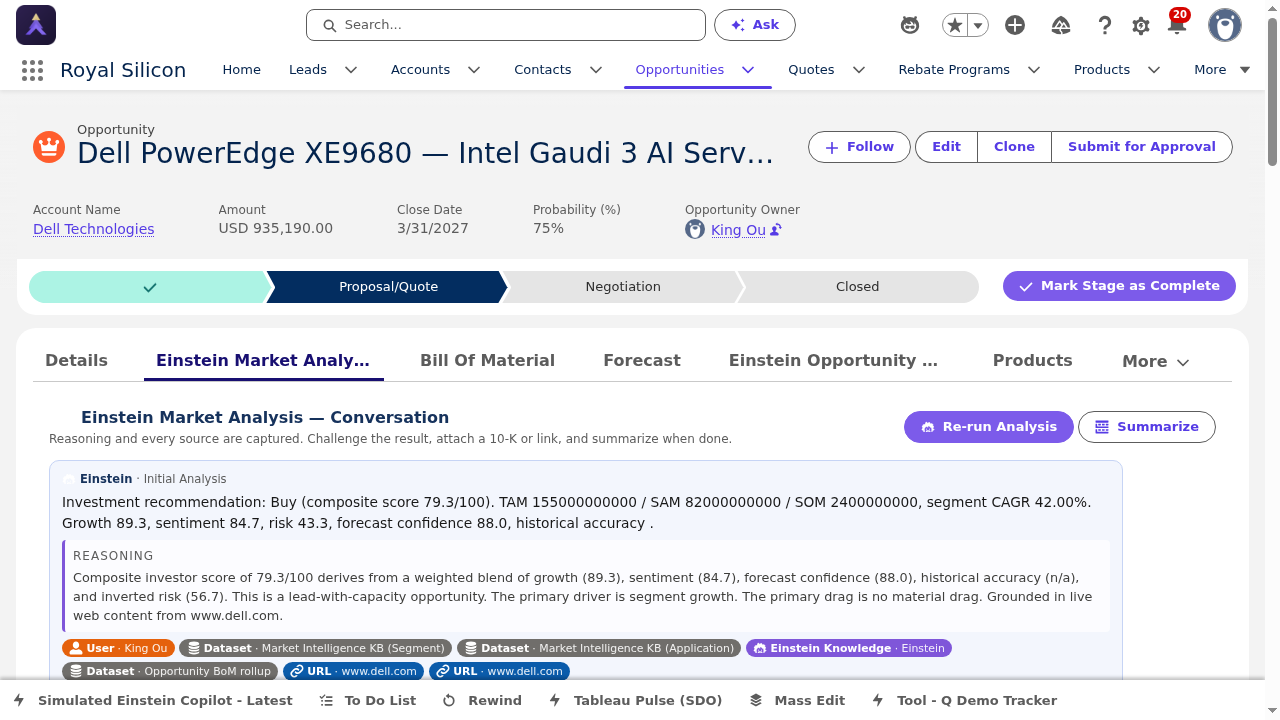
The Einstein Market Analysis tab leverages Salesforce Einstein AI to provide deep market intelligence about the opportunity. It includes an AI conversation interface, Sales Rep Data enrichment, an Application Picker, and a detailed Investor Brief with quantitative scores. This tab is designed to help sales reps understand market dynamics and make data-driven decisions.
The AI analysis covers Bull and Bear Cases for the opportunity, a Forecast Reality Check comparing estimates to market data, and Historical Accuracy metrics showing how well past forecasts predicted actual outcomes.
- AI Conversation — Interactive chat interface to ask questions about the market and get AI-generated insights
- Sales Rep Data — Enriched data from the sales rep's inputs combined with external market data
- Application Picker — Select the target application to refine market analysis and forecasts
- Investor Brief — Comprehensive analysis with quantitative scores and confidence ratings
- Bull/Bear Cases — Upside and downside scenario analysis for the opportunity
- Forecast Reality Check — Comparison of current forecast against market benchmarks and historical data
- Historical Accuracy — Track record of forecast precision for similar opportunities
Use the Application Picker to select the most specific end-application possible. The more precise the application context, the more relevant the Bull/Bear cases and Investor Brief scores will be. Review the Historical Accuracy section before presenting forecasts to management — it shows how much confidence you should place in the AI projections.
3 Bill of Material
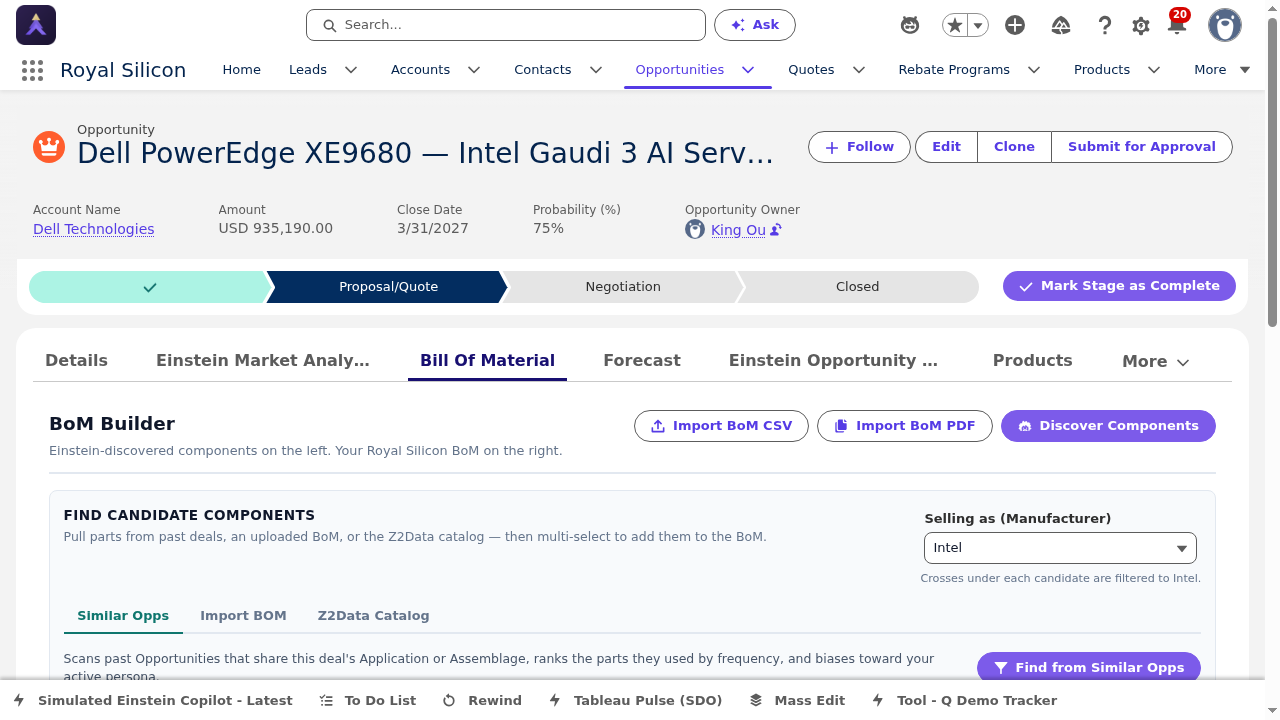
The Bill of Material (BOM) tab is a powerful workspace for building and managing the semiconductor components associated with this opportunity. It features the BOM Builder tool, options to Import CSV or PDF files of existing BOMs, a Discover Components search, and a Candidate Components staging area. You can view data in both BOM view and Socket view.
The BOM tab also displays key financial metrics including UPA (Unit Price Average), SOM% (Share of Market percentage), ASP (Average Selling Price), and Revenue projections. The BOM Cascade feature allows you to propagate BOM changes across related opportunities.
- BOM Builder — Visual drag-and-drop interface for adding components to the bill of materials
- Import CSV/PDF — Bulk import existing BOM data from spreadsheets or PDF documents
- Discover Components — Search the product catalog to find and add semiconductor components
- Candidate Components — Staging area for components under consideration before final BOM inclusion
- BOM/Socket Views — Toggle between BOM-centric and socket-centric data perspectives
- UPA / SOM% / ASP / Revenue — Real-time financial metrics calculated from BOM component data
- BOM Cascade — Propagate BOM updates across related opportunities to maintain consistency
When building a BOM from scratch, start by using the Import CSV feature if the customer has provided a component list. This saves significant time compared to manual entry. Always review the Candidate Components before promoting them to the final BOM. Use BOM Cascade carefully — it will update all linked opportunities, which is powerful but should be done intentionally.
4 Forecast
The Forecast tab houses the Demand Forecast Workbench, a sophisticated tool for projecting opportunity demand over time. It provides 12 different forecast models to choose from, each using different statistical methods. The tab features an interactive chart where you can drag data points to manually adjust forecasts, alongside a detailed period-by-period data table.
The interactive chart is one of the most powerful features — you can click and drag individual data points to override model predictions with your own market knowledge. Changes are reflected in real-time in the data table below.
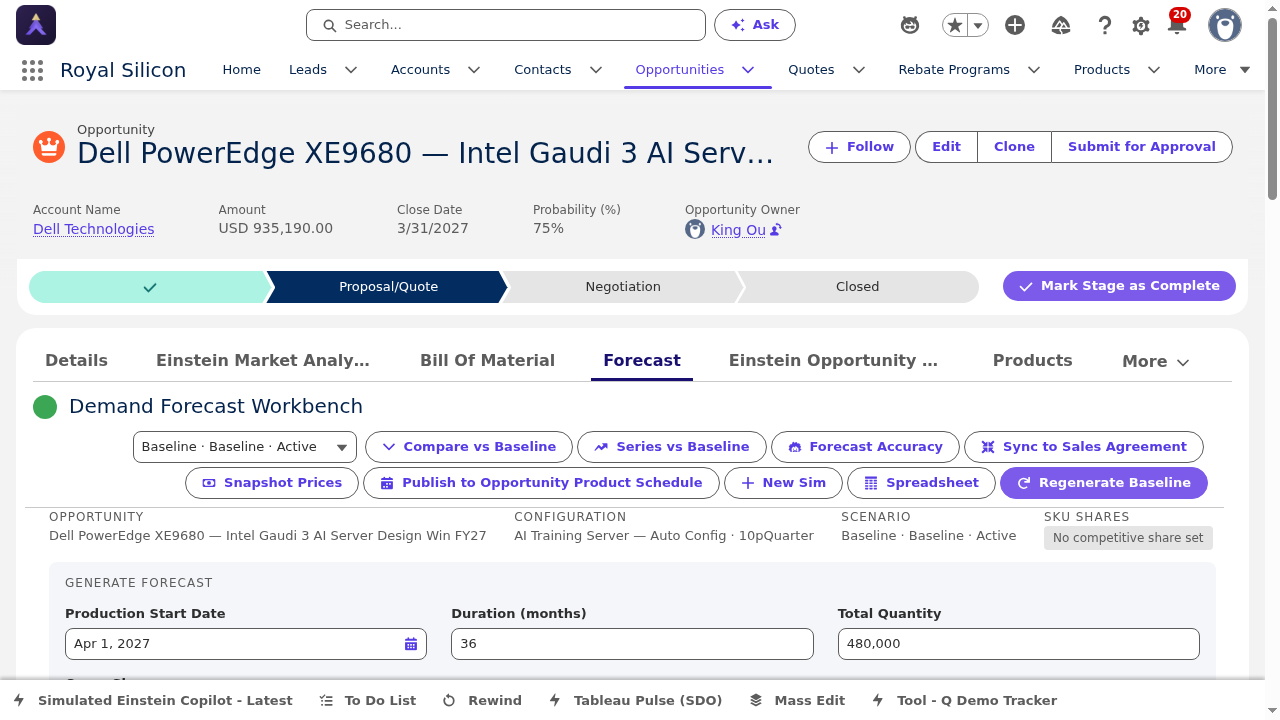
- Demand Forecast Workbench — Central workspace for managing all forecast data and projections
- 12 Forecast Models — Multiple statistical methods (linear, exponential, seasonal, etc.) to choose from
- Interactive Chart — Draggable data points let you manually adjust forecast values on the chart
- Period-by-Period Data Table — Granular tabular view of forecast values across each time period
- Model Comparison — Compare outputs from different models side-by-side to find the best fit
- Manual Override — Override any model-generated value with a manually entered forecast figure
Start by running all 12 models and comparing their outputs in the chart. Select the model that best matches your market knowledge, then use the drag-to-adjust feature to fine-tune specific periods where you have better intelligence. Always document the reason for manual overrides in the opportunity notes — your manager will want to understand the rationale during forecast reviews.
5 Einstein Opportunity Update
The Einstein Opportunity Update tab provides AI-generated summaries and actionable insights about the opportunity. Einstein analyzes the opportunity data, recent activities, email communications, and market signals to produce concise updates and recommended next steps. The tab displays both pending (draft) and processed (published) content.
This feature saves significant time by automatically summarizing complex opportunity data and highlighting the most important changes and actions needed.
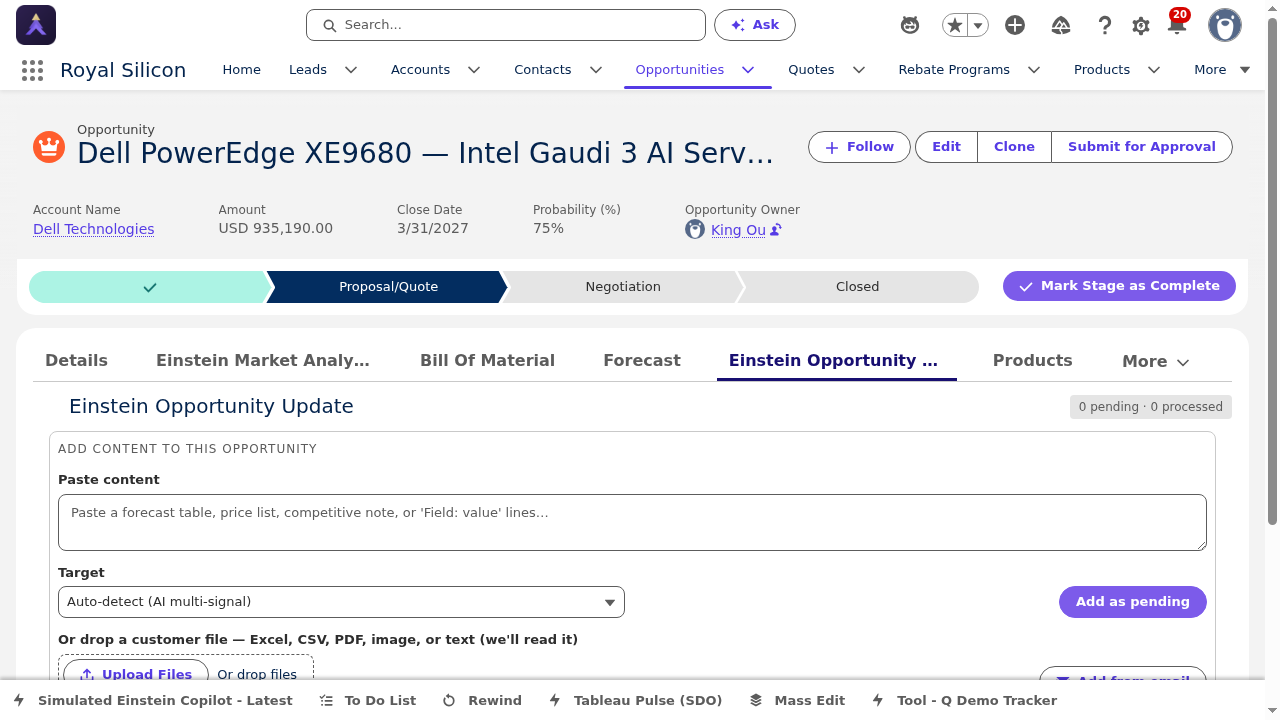
- AI-Generated Updates — Automated summaries of opportunity status, changes, and key metrics
- Pending Content — Draft updates awaiting review before being published
- Processed Content — Finalized and published updates visible to the entire team
- Recommended Actions — Einstein-suggested next steps based on opportunity analysis
- Activity Synthesis — Combines data from emails, calls, and meetings into a coherent narrative
Check this tab before every customer meeting or internal review. The AI update provides a concise summary that can serve as talking points. Review pending content promptly and either approve or edit it — stale pending updates reduce the value of the AI-generated insights for your team.
6 Products
The Products tab displays the Opportunity Product line items — the specific products and quantities associated with this opportunity. From here you can add new products from the product catalog, edit existing line items (quantities, prices, schedules), and remove products that are no longer relevant to the deal.
Products added here form the basis for Quote generation. When you create a Quote from this Opportunity, the product lines are carried over automatically.
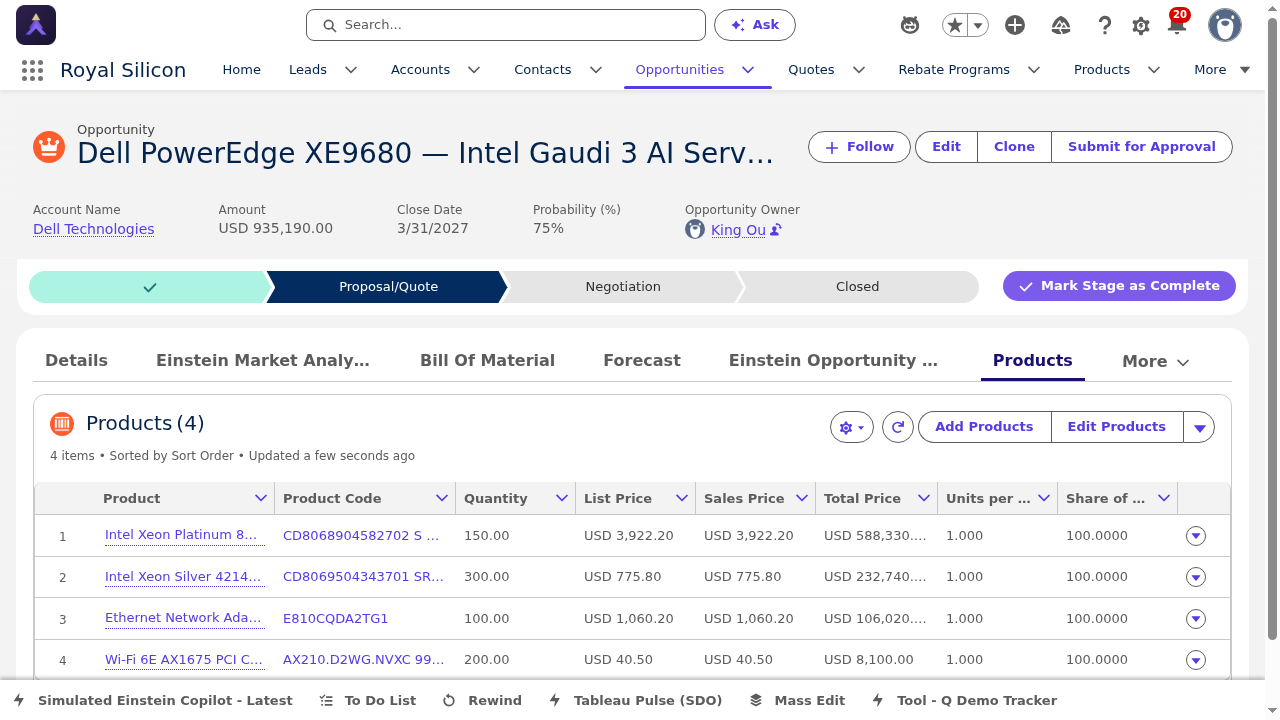
- Add Products — Search and add products from the Royal Silicon product catalog
- Edit Line Items — Modify quantity, unit price, line description, and schedule for each product
- Remove Products — Delete products that are no longer part of the opportunity
- Product Details — View product family, code, and standard list price for each item
- Total Calculation — Automatic sum of all line item values displayed at the top of the opportunity
Add products to the Opportunity early, even if quantities are estimates. This enables better forecasting and ensures that when you generate a Quote, the product lines transfer automatically. If the BOM tab is populated, cross-reference the Products tab to ensure consistency between BOM components and opportunity products.
7 Activities
The Activities tab provides a chronological timeline of all interactions related to this opportunity. You can log calls, send emails directly from the record, create new tasks, and view the complete activity history. The timeline displays past activities and upcoming scheduled items in a unified view.
Maintaining a thorough activity history is critical for team visibility and for the Einstein AI features, which analyze activity patterns to generate insights and recommendations.
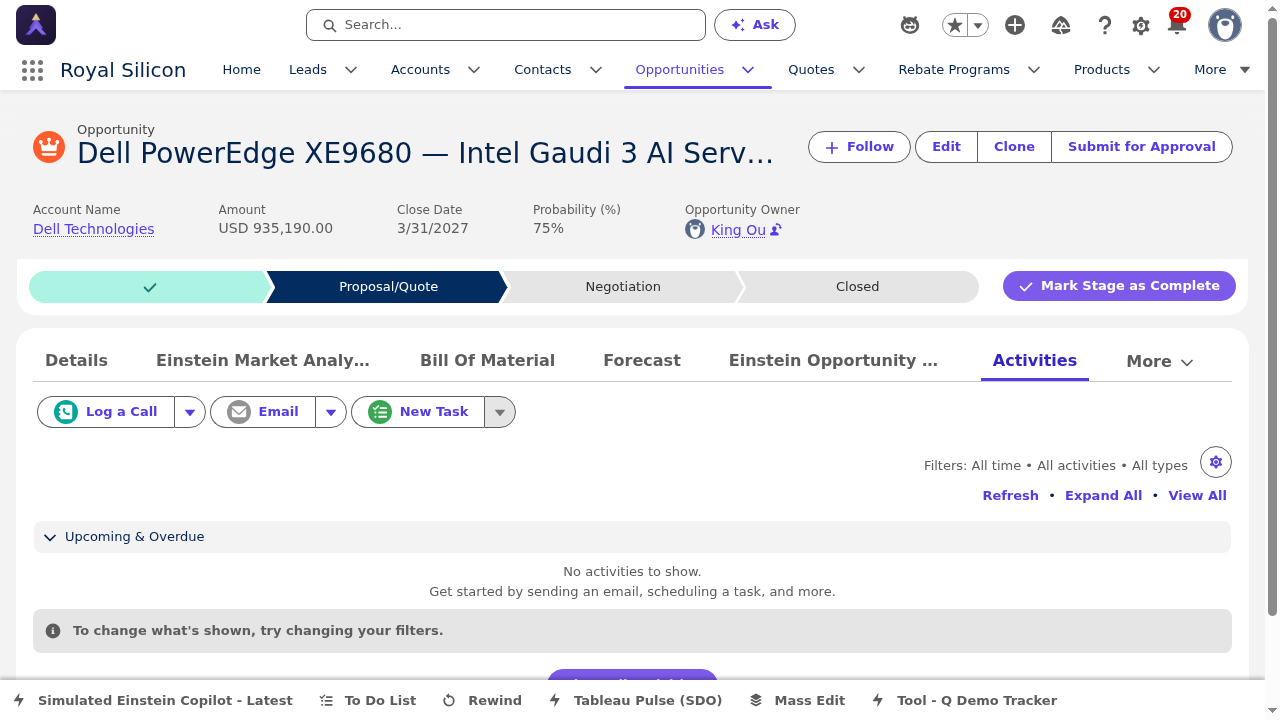
- Log a Call — Record details of phone conversations including subject, comments, and related contacts
- Email — Send emails directly from the opportunity record with automatic activity logging
- New Task — Create follow-up tasks with due dates, priorities, and assignments
- Activity Timeline — Chronological feed of all past and upcoming activities on this opportunity
- Filters — Filter the timeline by activity type (calls, emails, tasks, events) for quick review
Log every customer interaction, even brief ones. The Einstein Opportunity Update feature uses activity data to generate accurate summaries. Consistent activity logging also helps your manager and team members get up to speed quickly when they need to cover for you. Use the email feature to keep all correspondence linked to the opportunity record.
+ Quotes (Overflow Tab)
The Quotes tab appears in the overflow menu (click the dropdown arrow after the visible tabs). It shows all Quote records associated with this Opportunity. From here, you can navigate to any existing Quote or initiate the creation of a new Quote. The primary Quote (if synced) is indicated with a checkmark.
An Opportunity can have multiple Quotes — for example, different pricing scenarios or revisions — but only one Quote is synced as the primary at any given time.
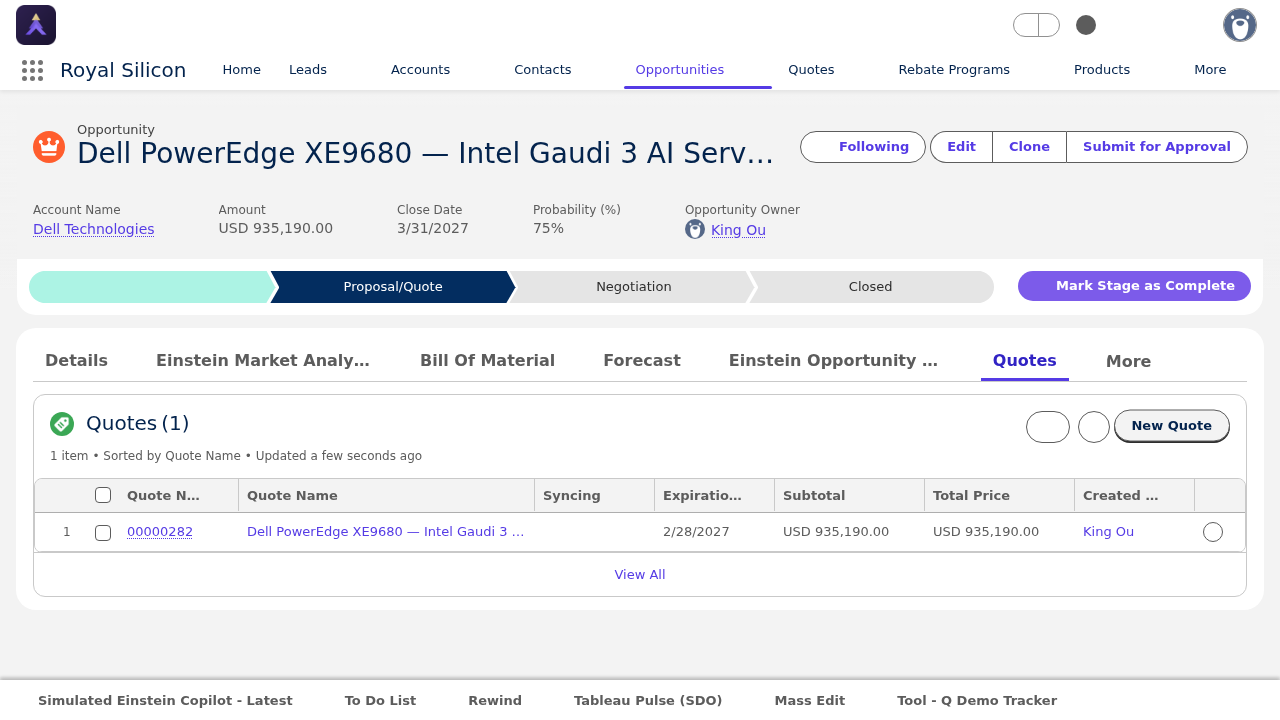
- Quote List — All Quotes tied to this Opportunity with status, amount, and expiration date
- New Quote — Button to create a new Quote from the Opportunity (inherits products)
- Synced Quote Indicator — Visual indicator showing which Quote is the currently synced primary
- Quick Navigation — Click any Quote name to open the full Quote record with all 7 tabs
Create a new Quote for each major pricing revision rather than editing the existing one. This preserves a history of all pricing scenarios presented to the customer. Always sync the most current Quote to keep the Opportunity amount in alignment with your latest pricing.
Quote Record — All Tabs
This section covers every tab on the Quote record. The Quote is where you build detailed pricing, manage competitive positioning, configure volume tiers, and navigate the approval process. Understanding each tab is essential for producing accurate, competitive quotes that move through approvals efficiently.
The Quote record header includes three important action buttons that are always accessible regardless of which tab you are viewing:
- Browse Catalogs — Open the product catalog to search and add products to the Quote
- Create Order — Convert the approved Quote into an Order record (only available after full approval)
- Create PDF — Generate a formatted PDF document of the Quote for customer distribution
1 Details
The Details tab on the Quote record contains three main sections: Quote Information (name, status, expiration date, associated opportunity), Addresses (shipping and billing), and Totals (subtotal, discount, grand total). This is the starting point for understanding any Quote and provides the administrative and financial summary.
Field values on this tab are partially inherited from the Opportunity and partially set during Quote creation. The Totals section updates automatically as you add or modify line items in the Quote Line Editor.
- Quote Information — Quote name, number, status (Draft/Needs Review/Approved), expiration date, and linked Opportunity
- Shipping Address — Customer delivery address for the order
- Billing Address — Invoicing address, which may differ from shipping
- Totals — Auto-calculated subtotal, discount amount, tax, and grand total
- Contact & Account Links — Quick links to the related Contact and Account records
Verify the shipping and billing addresses before submitting the Quote for approval. Incorrect addresses are a common reason for delays in order processing. The Totals section is read-only and calculated from the Quote Line Editor — to change the total, edit the individual line items.
2 Quote Line Editor
The Quote Line Editor is the core pricing tool of the Quote record. It presents an editable grid of all product lines on the Quote with columns for Product, Quantity, List Price, Unit Price, Discount %, Total Price, and Pricing Approval status. The Instant Pricing toggle enables or disables real-time price recalculation as you edit values.
This is where you spend most of your time when building a Quote. Each line can be individually adjusted, and the grid supports inline editing for rapid price configuration.
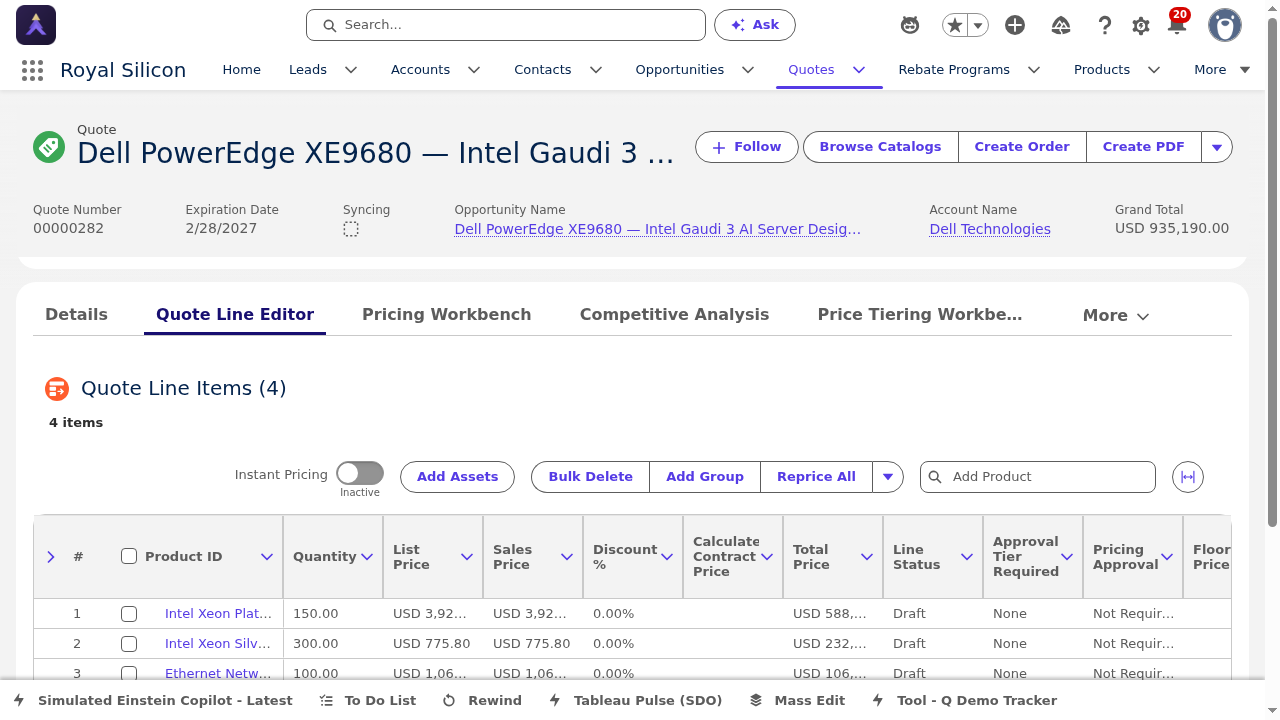
- Editable Grid — Inline editing for Quantity, Unit Price, and Discount % fields
- Instant Pricing Toggle — Enable/disable real-time recalculation as you type
- Product Column — Product name, code, and family for each line item
- List Price — Standard catalog price (read-only, set by the product catalog)
- Unit Price — The actual price being quoted to the customer (editable)
- Discount % — Percentage discount applied to the list price
- Total Price — Calculated as Unit Price x Quantity for each line
- Pricing Approval — Status indicator showing whether the line price requires approval
Turn off Instant Pricing when making multiple changes to avoid performance delays from repeated recalculations. Make all your edits, then toggle Instant Pricing back on (or click the recalculate button) to process everything at once. Watch the Pricing Approval column closely — any line that drops below the approved discount threshold will be flagged for approval, which adds time to the process.
3 Pricing Workbench
The Pricing Workbench provides advanced price analysis and optimization tools beyond the basic line editor. It allows sales reps to analyze pricing across the entire Quote, apply bulk adjustments, compare against historical pricing, and optimize margins. This tab is particularly useful for complex quotes with many line items.
Use the Pricing Workbench when you need a holistic view of your pricing strategy across all products on the Quote, rather than editing individual lines.
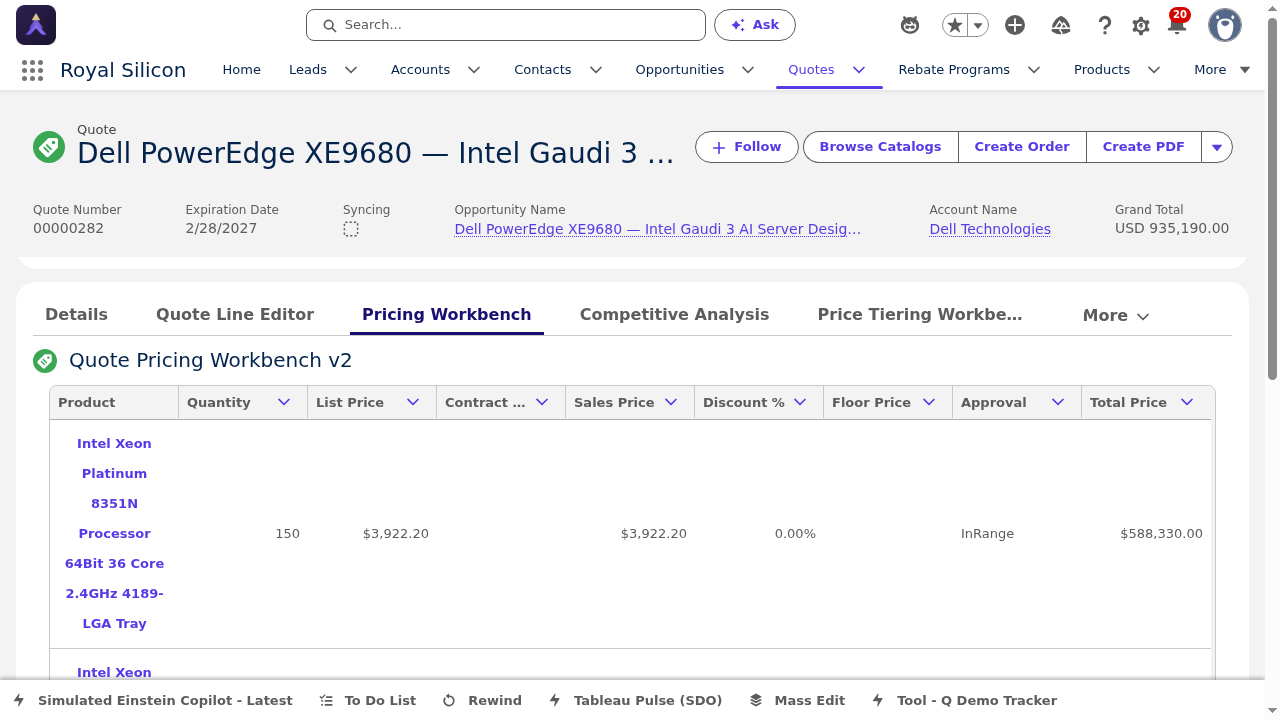
- Price Analysis — Visual breakdown of pricing across all Quote lines with margin indicators
- Bulk Adjustments — Apply percentage or fixed-amount adjustments across multiple lines simultaneously
- Historical Comparison — Compare current pricing against past quotes for the same customer or products
- Margin Optimization — Tools to identify opportunities to improve margin without losing competitiveness
- Pricing Scenarios — Model different pricing strategies and see their impact on total deal value
Use the Historical Comparison feature before setting prices. Seeing what the customer has paid in past deals gives you a solid baseline and prevents accidentally quoting below previous prices. The Pricing Workbench is best used after the initial line items are set up in the Quote Line Editor.
4 Competitive Analysis
The Competitive Analysis tab provides tools to compare your pricing and product positioning against competitor offerings. This feature helps sales reps understand how their Quote stacks up in the market and identify areas where Royal Silicon has a competitive advantage or disadvantage.
Competitive data can come from multiple sources including market intelligence feeds, manual entry, and AI-enriched data. The tab presents side-by-side comparisons to support pricing decisions and competitive positioning conversations with customers.
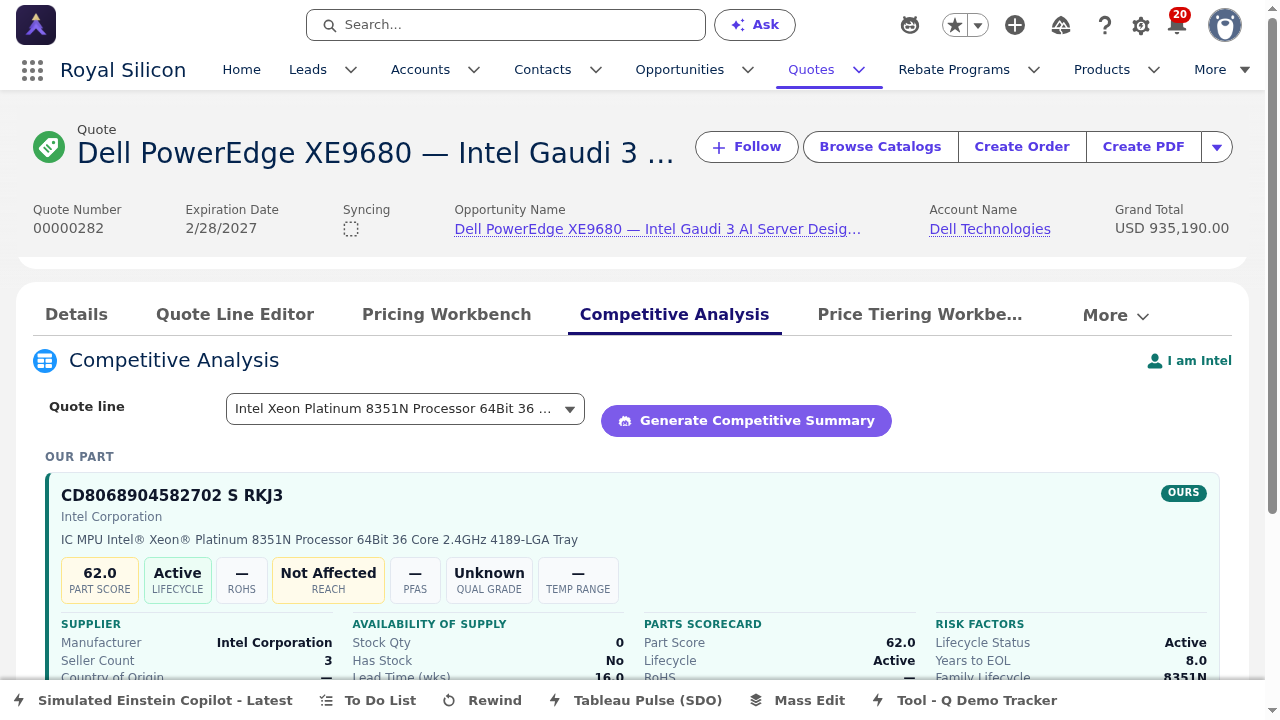
- Competitor Profiles — Pre-loaded profiles of key competitors in the semiconductor market
- Side-by-Side Comparison — Compare your product specs and pricing against competitor alternatives
- Win/Loss Indicators — Visual indicators showing where you are above or below competitor pricing
- Market Position Map — Graphical view of price-performance positioning relative to competitors
- Competitive Notes — Field to capture competitive intelligence from customer conversations
Populate competitive data as early as possible in the deal cycle. This allows the Pricing Workbench and Quote Line Editor to factor in competitive positioning when suggesting prices. When a customer mentions a competitor, immediately add it to the Competitive Analysis tab — this data improves over time and helps the entire sales team.
5 Price Tiering Workbench
The Price Tiering Workbench allows you to configure volume-based pricing tiers for products on the Quote. In the semiconductor industry, pricing often varies significantly based on order volume. This tab provides a structured interface to define quantity breakpoints and the corresponding price per unit at each tier.
Tiered pricing is common for semiconductor components where larger volumes justify lower per-unit costs. The workbench validates tier configurations and ensures they are consistent and logically ordered.
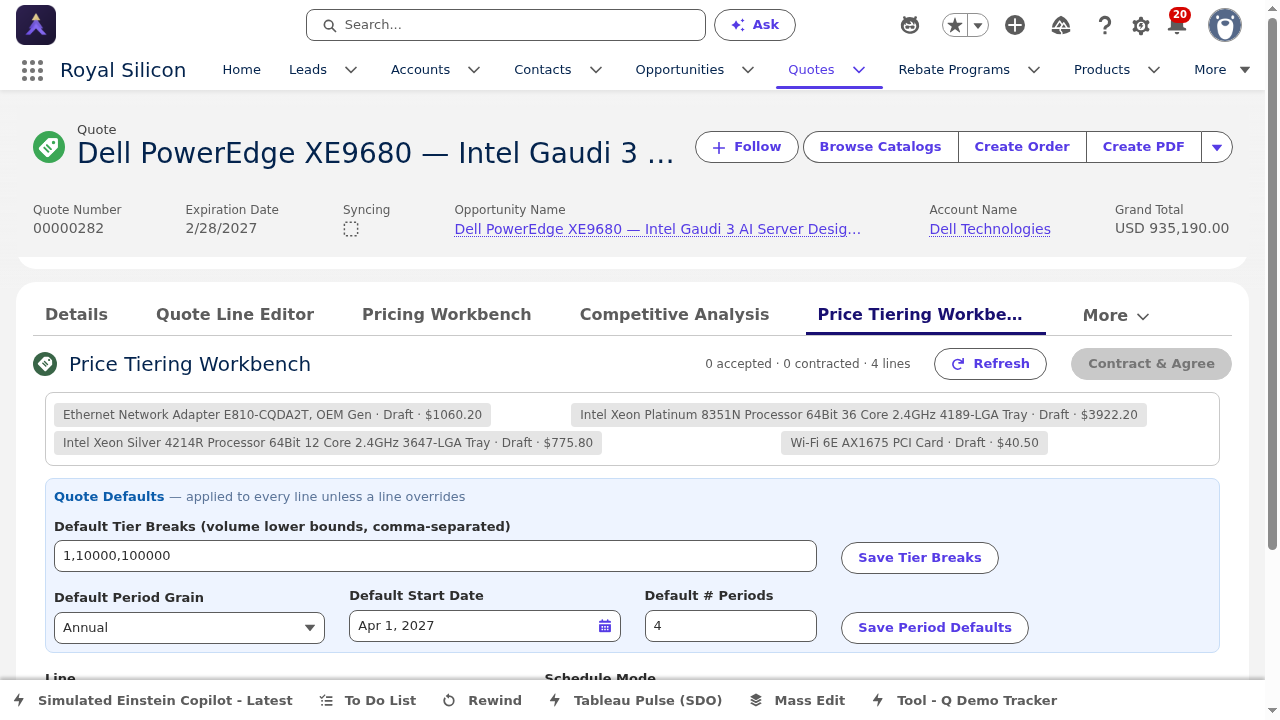
- Tier Configuration — Define quantity breakpoints (e.g., 1-99, 100-999, 1000+) with pricing at each level
- Per-Product Tiers — Configure different tier structures for each product on the Quote
- Tier Validation — Automatic checks for overlapping ranges, missing gaps, and logical consistency
- Revenue Projection — See projected revenue at each tier level based on expected volumes
- Bulk Tier Templates — Apply standard tiering templates across multiple products at once
Use Bulk Tier Templates when quoting multiple products with similar pricing structures. This ensures consistency and saves time. Always verify that tier breakpoints align with the customer's expected order volumes — a mismatch between tiers and actual volume can result in unexpected pricing that delays approval.
6 Approvals
The Approvals tab manages the line-level pricing approval workflow. It displays a Line Approvals table with columns for Product, Business Unit (BU), Region, List Price, Unit Price, Discount %, Approval Required, Line Status, AI recommendation, Pricing evaluation, and BU approval. The tab includes action buttons for Filter by BU, Submit for Approval, Proceed with Approved, and Evaluate with AI.
This tab is critical in the semiconductor industry where discount authority varies by product line, region, and business unit. Lines requiring approval are flagged automatically when the unit price drops below pre-defined thresholds.
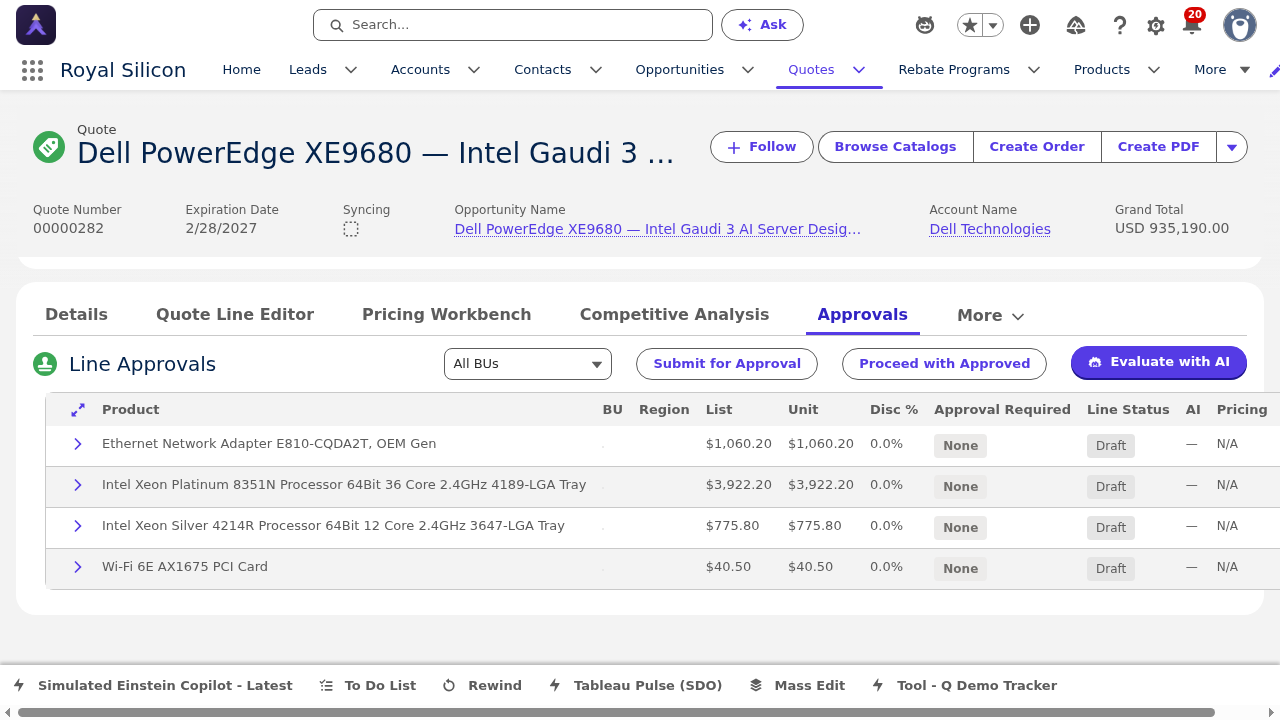
- Line Approvals Table — Comprehensive table showing approval status for every line on the Quote
- Filter by BU — Filter the approval view to a specific Business Unit for targeted review
- Submit for Approval — Send flagged lines to the appropriate approvers in the hierarchy
- Proceed with Approved — Advance the Quote with only the lines that have been approved
- Evaluate with AI — Use Einstein AI to assess pricing risk and recommend approval decisions
- Columns: Product, BU, Region, List Price, Unit Price, Disc%, Approval Required, Line Status, AI, Pricing, BU approval
Click "Evaluate with AI" before submitting for approval. The AI evaluation provides a recommendation that the approver will see, and a well-justified AI recommendation speeds up the approval process. If some lines are approved and others are pending, use "Proceed with Approved" to keep the deal moving while waiting for the remaining approvals.
7 Related
The Related tab displays all related lists associated with the Quote record. This includes Quote Line Items (the individual product lines), Notes and Attachments, Email messages, and any other custom related lists configured in the system. It provides a unified view of everything connected to this Quote.
While individual tabs provide focused views of specific data, the Related tab gives you access to everything in one scrollable interface — useful for a comprehensive review before finalizing the Quote.
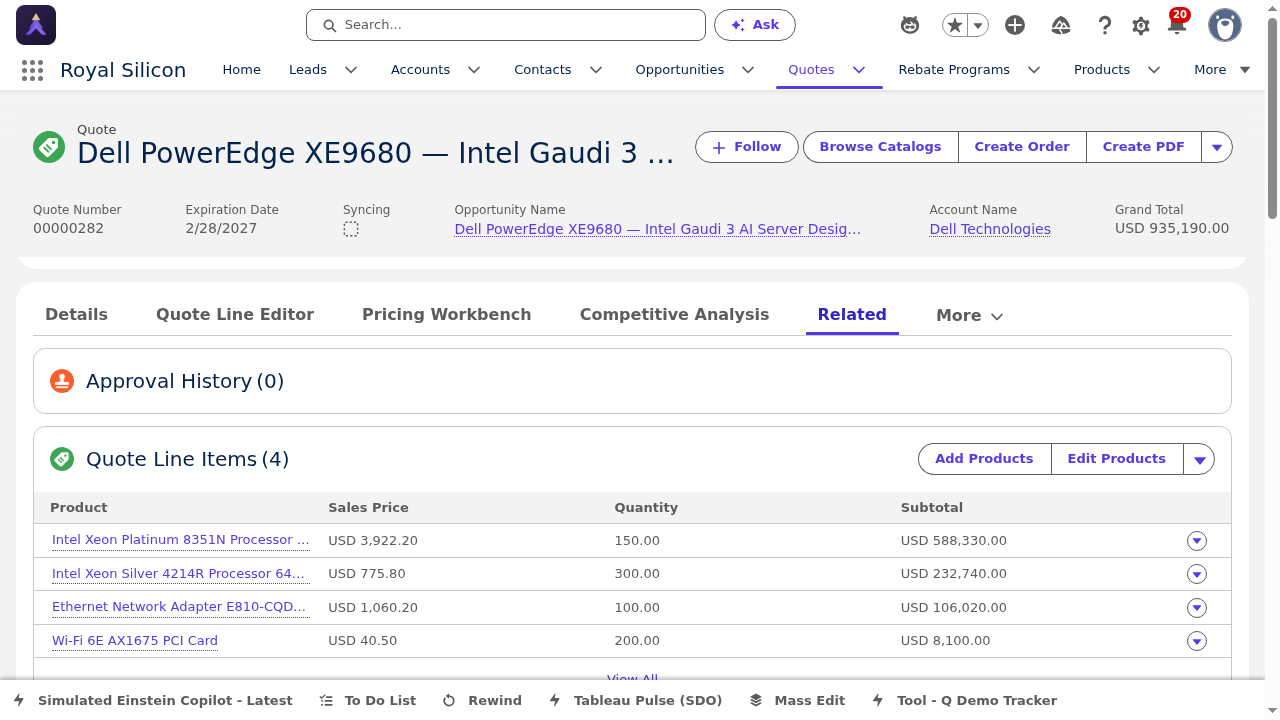
- Quote Line Items — Complete list of all product lines with details and pricing
- Notes & Attachments — Documents, PDFs, and internal notes attached to the Quote
- Email Messages — Emails sent to or received from the customer regarding this Quote
- Activity History — Past activities specifically related to this Quote
- Custom Related Lists — Any additional related objects configured by administrators
Before generating a PDF or submitting for approval, scroll through the Related tab to do a final check. Verify that all line items are present, any required attachments have been uploaded, and there are no outstanding notes from team members. This "pre-flight check" catches issues that are harder to spot when looking at individual tabs.
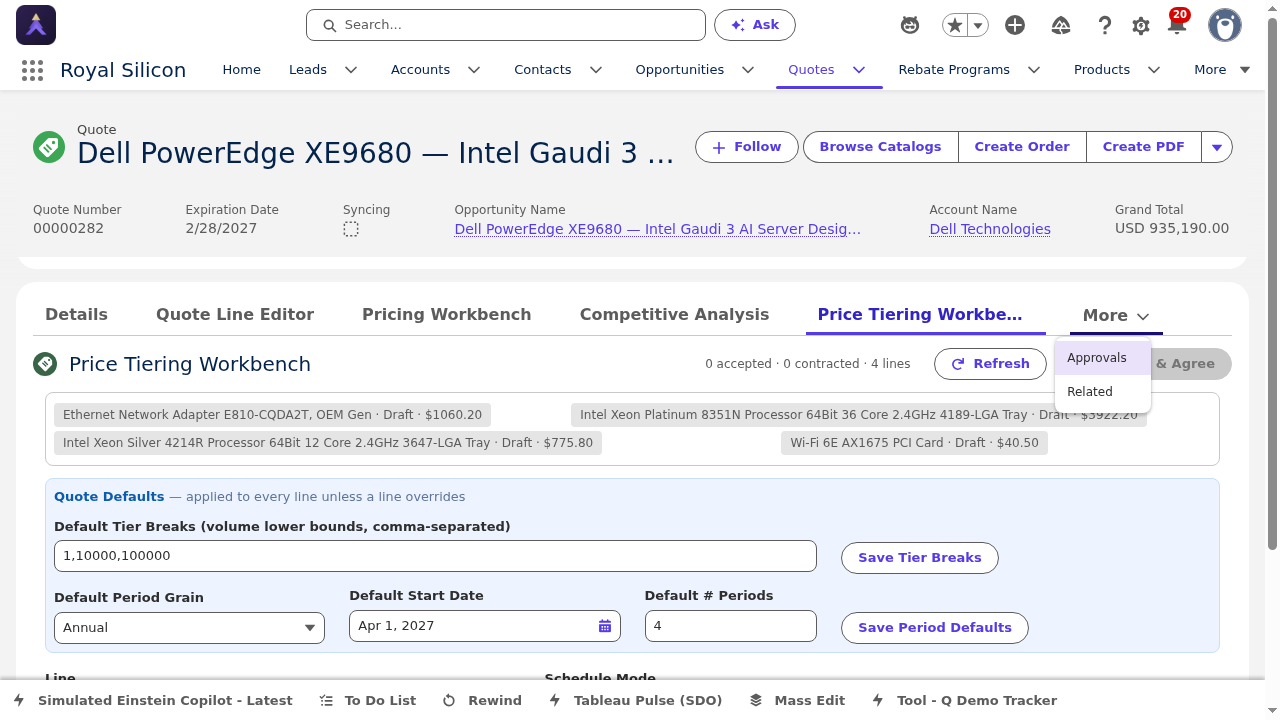
Quote More Tabs / Overflow
If additional tabs are configured, they appear in the overflow dropdown. Click the "More" indicator at the end of the tab bar to reveal them.
Actions & Workflows
This section covers the key actions, workflows, and processes you will use regularly when working with Direct Opportunities. Understanding these workflows is essential for efficiently moving deals from initial opportunity through to closed orders.
Opportunity Actions
The Opportunity record provides several standard and custom actions available from the record header and action menu.
Edit
Open the Opportunity record you wish to edit.
Click the Edit button in the record header (pencil icon or "Edit" text button).
Modify the fields you need to update. All editable fields will become active.
Click Save to commit your changes, or Cancel to discard them.
You can also inline-edit individual fields by clicking the pencil icon next to any editable field on the Details tab. This is faster than opening the full edit modal when you only need to change one or two values.
Clone
Open the Opportunity record you wish to clone.
Click the dropdown arrow next to the main action buttons and select Clone.
Review the pre-populated fields. Update the Opportunity Name, Close Date, and any other fields that need to differ from the original.
Click Save to create the new Opportunity. Products are not cloned automatically — you will need to add them separately.
Submit for Approval
Ensure the Opportunity record is complete with all required fields filled in.
Click Submit for Approval from the action menu.
Add any required comments explaining the reason for approval (optional but recommended).
Click Submit. The Opportunity is now locked for editing and enters the approval queue.
Track the approval status in the Approval History related list.
Path Assistant: Advancing Opportunity Stages
The Path Assistant is the visual stage indicator at the top of every Opportunity record. It displays the current stage and provides guidance for advancing to the next stage. The four key stages for Direct Opportunities are:
Advancing Stages
Discovery: The opportunity has been identified. Complete the Details tab with account information, project details, and initial revenue estimates. Populate the BOM and run Einstein Market Analysis.
Proposal / Quote: Create a Quote from the Opportunity. Build out pricing in the Quote Line Editor, run competitive analysis, and configure tiered pricing if needed. Send the Quote PDF to the customer.
Negotiation: The customer has received the Quote and discussions are underway. Update pricing based on customer feedback, manage approval workflows, and track activities. Create revised Quotes as needed.
Closed: Mark as Closed Won (deal completed) or Closed Lost (deal lost). For Closed Won, create an Order from the approved Quote.
- Click on the current stage in the Path Assistant to see key fields and guidance for that stage
- Click Mark as Current Stage to update the stage, or Select Closed Stage at any point
- The Path Assistant provides coaching prompts listing the fields and actions recommended before advancing
- Stage history is tracked and visible in the Stage History related list
Quote Generation from Opportunity
The following flow shows how a Quote is created from an Opportunity and configured for pricing:
1. Navigate
Open the Opportunity record and go to the Quotes (overflow) tab.
2. Create Quote
Click New Quote. Fields are pre-populated from the Opportunity (Account, Contact, products).
3. Configure
Set the Expiration Date, review the Quote Name, adjust any fields, and click Save.
4. Price Lines
Navigate to Quote Line Editor tab to build pricing for each product line.
Quote Action Buttons
The Quote record header contains three primary action buttons that drive the end-to-end workflow:
| Action | Description | When to Use |
|---|---|---|
| Browse Catalogs | Opens the product catalog to search for and add products to the Quote. Supports filtering by product family, category, and keyword search. | When you need to add new products to the Quote that were not inherited from the Opportunity. |
| Create Order | Converts the approved Quote into a Salesforce Order record. This action is only available after all line items have been approved. | After the customer has accepted the Quote and all pricing approvals are complete. |
| Create PDF | Generates a formatted PDF document of the Quote using the configured template. The PDF includes all line items, pricing, terms, and company branding. | When you need to send the Quote to the customer or generate a document for internal review. |
Approval Workflows
Pricing approvals are central to the Quote process. The flow below illustrates the end-to-end approval workflow:
1. Price Entry
Enter or adjust pricing in the Quote Line Editor. Lines below the authorized discount threshold are automatically flagged as "Approval Required."
2. AI Evaluation
Navigate to the Approvals tab and click Evaluate with AI. Einstein analyzes pricing against historical data and competitive benchmarks.
3. Submit for Approval
Click Submit for Approval. Flagged lines are routed to the appropriate approver based on BU, Region, and discount level.
Once a Quote is submitted for approval, the line items are locked and cannot be edited until the approval process completes (approved or rejected). If you need to make changes, you must recall the approval first, which restarts the process. Plan your pricing carefully before submitting.
Approval Comparison: Custom Line-Item vs. OOTB Header-Level
Royal Silicon uses a custom Quote line-item approval process that provides significantly more granularity and intelligence than the standard out-of-the-box Salesforce approval. Here is a side-by-side comparison:
Custom Line-Item Approval
Royal Silicon ImplementationOOTB Salesforce Approval
Standard PlatformIn semiconductor pricing, a single Quote can contain dozens of line items with widely varying margins. Line-item approval means a $2M deal is not held up because one $500 line needs re-pricing. This dramatically reduces approval cycle times and keeps deals moving through the pipeline.
Reference
This section provides quick-reference materials including a glossary of semiconductor and Salesforce terms, field reference tables for Opportunity and Quote records, and navigation tips.
Glossary of Terms
ASP (Average Selling Price)
The average price at which a particular product is sold across all customers and channels. Used to benchmark individual deal pricing against the market average.
BOM (Bill of Materials)
A comprehensive list of all semiconductor components, parts, and quantities required for a customer's product design. The BOM is central to opportunity sizing and revenue estimation.
BOM Cascade
The process of propagating BOM changes from one opportunity to all related opportunities. Used when a design change affects multiple deals or customers.
BU (Business Unit)
An organizational division within Royal Silicon responsible for a specific product line or market segment. Approvals and pricing authority are often segmented by BU.
DReg (Design Registration)
A formal registration of a semiconductor design win, linking a specific customer project to Royal Silicon products. DRegs protect the sales rep's claim on the revenue.
Einstein AI
Salesforce's artificial intelligence platform integrated into the opportunity and quote workflows. Provides market analysis, opportunity updates, and pricing evaluation.
Instant Pricing
A toggle in the Quote Line Editor that enables or disables real-time price recalculation as line item values are changed.
Path Assistant
The visual stage indicator at the top of the Opportunity record that shows the current deal stage and provides guidance for advancing to the next stage.
Socket
A specific position on a circuit board or in a BOM where a semiconductor component is placed. The Socket view shows which components compete for each position.
SOM% (Share of Market)
The percentage of total addressable market that Royal Silicon expects to capture for a given component or socket position. A key metric for opportunity sizing.
Synced Quote
The primary Quote linked to an Opportunity. When a Quote is synced, changes to Quote products are reflected back to the Opportunity amount.
UPA (Unit Price Average)
The average unit price across all components in the BOM. Used to compare pricing across opportunities and track pricing trends over time.
Key Opportunity Fields
| Field Name | Section | Description |
|---|---|---|
| Opportunity Name | Summary | The unique name for this opportunity (typically includes account name and project) |
| Account Name | Summary | The customer account associated with this opportunity |
| Amount | Summary | The estimated total revenue value of the opportunity |
| Close Date | Summary | The expected date the deal will close (win or loss) |
| Stage | Summary | Current stage in the sales process (Discovery, Proposal/Quote, Negotiation, Closed) |
| Probability | Summary | Percentage likelihood of winning the deal (often auto-set by stage) |
| End Application | Project Detail | The customer's end product where Royal Silicon components will be used |
| Target Volume | Project Detail | Estimated annual unit volume for the customer's product |
| Production Start | Project Detail | Expected date when the customer begins mass production |
| Lead Source | Marketing | Where the opportunity originated (web, referral, campaign, etc.) |
| Campaign | Marketing | The marketing campaign that generated or influenced this opportunity |
| Record Type | System | Identifies this as a Direct Opportunity (vs. Distribution or other types) |
| Opportunity Owner | System | The sales rep responsible for managing this opportunity |
Key Quote Fields
| Field Name | Section | Description |
|---|---|---|
| Quote Name | Information | Unique identifier for the Quote (auto-generated or manually set) |
| Quote Number | Information | System-assigned sequential number for tracking |
| Status | Information | Current status: Draft, Needs Review, In Review, Approved, Rejected, Accepted |
| Expiration Date | Information | Date after which the quoted pricing is no longer valid |
| Opportunity Name | Information | The parent Opportunity this Quote is associated with |
| Contact Name | Information | The primary customer contact for this Quote |
| Shipping Address | Address | Customer delivery address for orders generated from this Quote |
| Billing Address | Address | Customer invoicing address (may differ from shipping) |
| Subtotal | Totals | Sum of all line item totals before discounts and tax |
| Discount | Totals | Total discount amount applied across all line items |
| Grand Total | Totals | Final total after discounts and tax — the amount the customer pays |
| Synced | Information | Whether this Quote is the synced (primary) Quote on the parent Opportunity |
Navigation Tips
| Action | How |
|---|---|
| Switch between Opportunity tabs | Click the tab name in the horizontal tab bar below the record header |
| Access overflow tabs | Click the dropdown arrow (▾) at the end of the visible tab bar |
| Navigate to a related Quote | Go to the Quotes overflow tab and click the Quote name link |
| Return to Opportunity from Quote | Click the Opportunity Name link in the Quote Details tab |
| Inline edit a field | Hover over the field value and click the pencil icon that appears |
| Open record in new tab | Middle-click (or Ctrl+click) on any record name link |
| Quick search for records | Use the Global Search bar at the top of Salesforce (Ctrl+/) |
| View record details modal | Hover over any record name link to see a quick preview popup |
| Collapse/expand sections | Click the section header or the arrow icon to toggle visibility |
| Save inline edits | Press Enter or click the checkmark icon after editing a field |
| Cancel inline edits | Press Escape or click the X icon to discard changes |
| Refresh record data | Click the browser refresh button or press F5 to reload the latest data |
- Ctrl + / — Open Global Search
- Enter — Save inline field edit
- Escape — Cancel inline field edit or close modal
- Tab — Move to next field in edit mode
- Shift + Tab — Move to previous field in edit mode
- F5 — Refresh page to load latest data
SME Workbenches
Royal Silicon embeds subject matter expert (SME) knowledge directly into the Salesforce application through specialized workbenches. Data scientists and pricing experts configure the algorithms, indexes, and parameters — so every sales rep benefits from that expertise without needing to be an expert themselves. The result: consistent processes, continuous improvement, reduced training time, and dramatically more productive sales reps who no longer wait for expert help.
Forecasting Workbenches
Forecasting workbenches give data scientists the tools to configure, tune, and validate demand forecasting models that sales reps use seamlessly in their daily workflow.
Forecast Workbench
The primary forecasting tool with 12 distinct models — from statistical (ARIMA, Holt-Winters) to ML (LSTM, Moirai Foundation) to specialty (Bass Diffusion, Lotka-Volterra). Includes AI-powered demand reshaping, simulation scenarios, a 6-series quantity grid, and CSV export.
Shaping Console
Configures application ramp profiles and market signals that feed into both forecasting and pricing. SMEs define how new product introductions, end-of-life transitions, and market events shape the demand curve. Parameters propagate automatically.
Advanced Forecasting Adjuster
A Flow-based tool for making manual forecast adjustments with full audit trail. Used when SMEs need to override model outputs based on customer intelligence or market events not captured in historical data.
Pricing Workbenches
Pricing workbenches let pricing analysts and economists embed their knowledge into index-referenced pricing models, ensuring every quote reflects current market conditions and competitive dynamics.
Quote Pricing Workbench
The central pricing tool for sales reps. Features dual-index blending with custom weights, demand outlook integration, swappability advisory (alternative product recommendations), and deal score optimization that balances win probability against margin targets.
Pricing Schedule
Manages the Tier × Period pricing matrix with two modes: Single Price (one price across all periods) and Price Table (different prices per period and volume tier). Includes a Simulate mode for testing pricing scenarios before committing.
Index Workbench
Where pricing economists manage commodity and market indexes. Supports 4 ingestion methods (manual, CSV, API, scheduled), a KPI dashboard, and a self-tuning elasticity engine that learns the win-rate-to-price-elasticity relationship from historical deal outcomes.
Sales reps interact with the output of these workbenches — optimized forecasts, recommended prices, deal scores — without needing to understand the underlying models. When a rep opens a Quote, the pricing recommendations reflect the latest index data, competitive dynamics, and win-rate models configured by the SME team. No delays waiting for expert input. No inconsistency between reps. The intelligence is built into the tool.
Micro Agents
Micro Agents are specialized Einstein dialog boxes embedded throughout the application. Each one is a purpose-built conversational AI agent that engages users with LLM capabilities to perform tasks in the context of a specific activity. They transform complex analytical tasks into natural conversations — users simply ask questions or describe what they need, and the Micro Agent handles the heavy lifting.
Market Analysis Conversation
An interactive market analysis agent that generates financial insights with full source attribution. Users can challenge findings, drill into specific data points, and generate executive summaries. Every response cites its sources, and users can click through to verify the underlying data. The conversation is audited via Analysis_Conversation__c / Analysis_Turn__c records.
Einstein Opportunity Update
A multi-lane AI content classifier that processes incoming communications (emails, notes, documents) and classifies relevant content into Opportunity field updates. Features confidence scoring per field, a simulation preview ("what would change"), and Gmail integration for pulling in email threads. Users review AI suggestions before accepting changes.
Pricing Advisor
An AI chat agent specialized in Quote line pricing. Users ask questions like "What price should I set for this part?" and the advisor responds with recommendations backed by KPIs, interactive price-volume charts, and index blend controls. The agent considers historical win rates, competitive pricing, current index values, and demand outlook when making recommendations.
Competitive Analysis
Powered by Z2Data cross-reference databases, this agent provides competitive part cross-references with AI-generated summaries. Users can explore alternative parts, compare specifications, and understand competitive positioning — all within the context of the Quote they are pricing.
AI Opportunity Intake
Creates a new Opportunity directly from an Account page through natural language or document upload. Users describe the deal in plain text (e.g., "Automotive customer needs 50K units of RS-4032 for Q3 production") or upload a requirements document, and the agent extracts structured fields to populate the Opportunity automatically.
Micro Agents eliminate the "expertise gap" in daily sales operations. Instead of switching between tools, consulting spreadsheets, or waiting for analyst support, reps get instant, context-aware AI assistance right where they work. Each agent understands the specific record, related data, and business rules — delivering relevant answers in seconds, not hours.