Welcome to Path 2: DReg to Ship & Debit Rebate Claims
This training guide walks you through the complete lifecycle from Design Registration (DReg) through Ship & Debit Rebate Claims in the Royal Silicon Semiconductor Salesforce application. By the end of this guide, you will understand how partners submit DRegs, how the internal team reviews and approves them, how approved DRegs convert into Opportunities, how Rebate Programs are configured, and how claims are processed through to payout.
The DReg-to-Ship & Debit path is the channel partner workflow. It begins when a partner identifies a design opportunity and registers it through the Royal Silicon Partner Portal, continues through internal review and opportunity conversion, and extends all the way through rebate program setup, POS data validation, claims processing, and payout disbursement.
The Complete Lifecycle Flow
The DReg-to-Ship & Debit workflow spans the full partner engagement lifecycle, from initial registration through financial reconciliation:
The full lifecycle from partner design registration through rebate claim payout.
Quick Reference: DReg Statuses
Each Design Registration moves through a defined set of statuses. Understanding these statuses is essential for tracking DRegs through the pipeline.
| Status | Badge | Description |
|---|---|---|
| Draft | Draft | DReg has been started but not yet submitted by the partner. Can still be edited. |
| Submitted | Submitted | Partner has submitted the DReg for review. Enters the internal review queue. |
| InReview | InReview | Internal team is actively reviewing the submitted DReg in the Workbench. |
| Approved | Approved | DReg has been approved and is eligible for conversion to an Opportunity. |
| Rejected | Rejected | DReg has been rejected due to eligibility issues, duplicate registration, or other criteria. |
| NotSelected | NotSelected | DReg was valid but not selected for this design cycle or territory. |
Quick Reference: All Stages at a Glance
Design Registration (DReg)
Partner submits a new design opportunity through the Partner Portal. Internal team reviews, approves, or rejects via the DReg Workbench.
DReg-to-Opportunity Conversion
Approved DRegs are converted into Salesforce Opportunities, carrying over partner, product, and design data automatically.
Rebate Program Setup
Rebate Programs are created and configured with payout information, date ranges, and membership. Rebate Types define calculation and benefit rules.
Claims Processing & Payouts
POS data is validated against registered designs. Claims are generated, processed through workbenches, and payouts are calculated and disbursed.
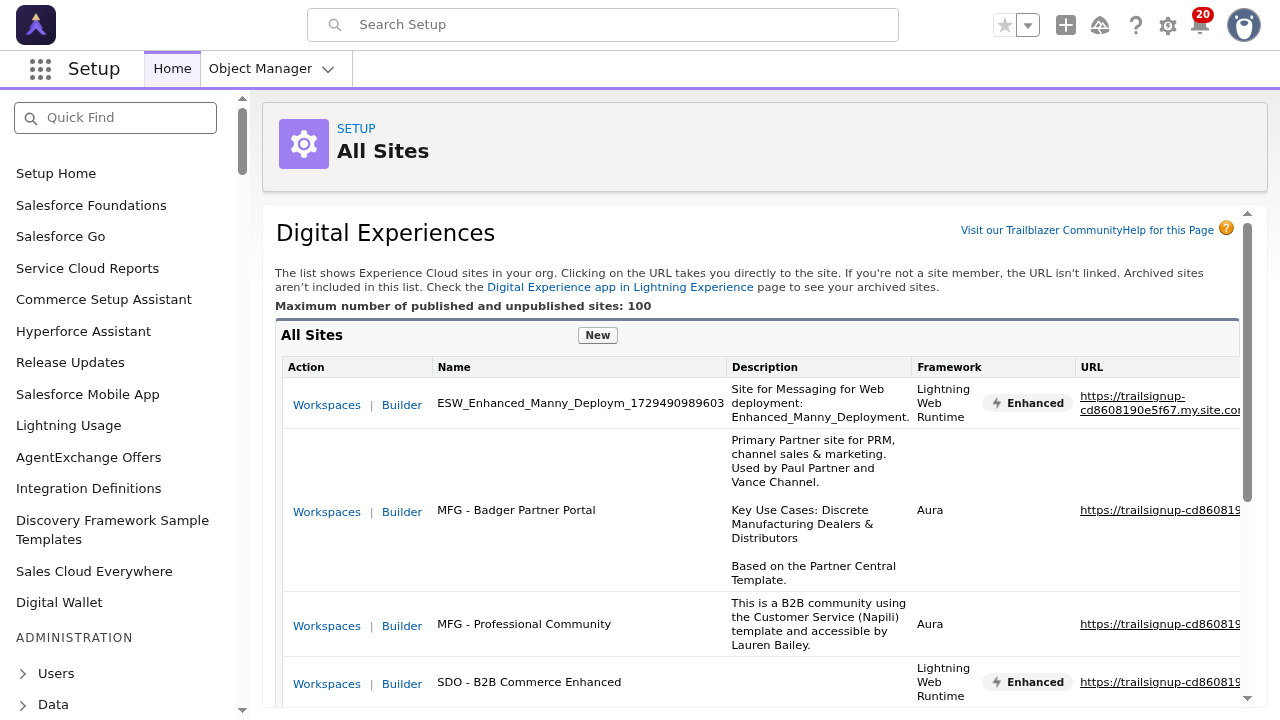
Experience Cloud Partner Portal
Partners access the Royal Silicon Partner Portal through an Experience
Cloud site at /rspartners. This is where all DReg
submissions originate. The portal provides a branded, self-service
interface for partners to manage their design registrations.
Design Registration (DReg) — Full Lifecycle
This section covers the complete Design Registration (DReg) process, from partner submission through internal review, approval, and conversion to Opportunity. The DReg is the foundational record that connects a channel partner's design opportunity to the Royal Silicon rebate ecosystem.
2.1 Partner Portal Submission
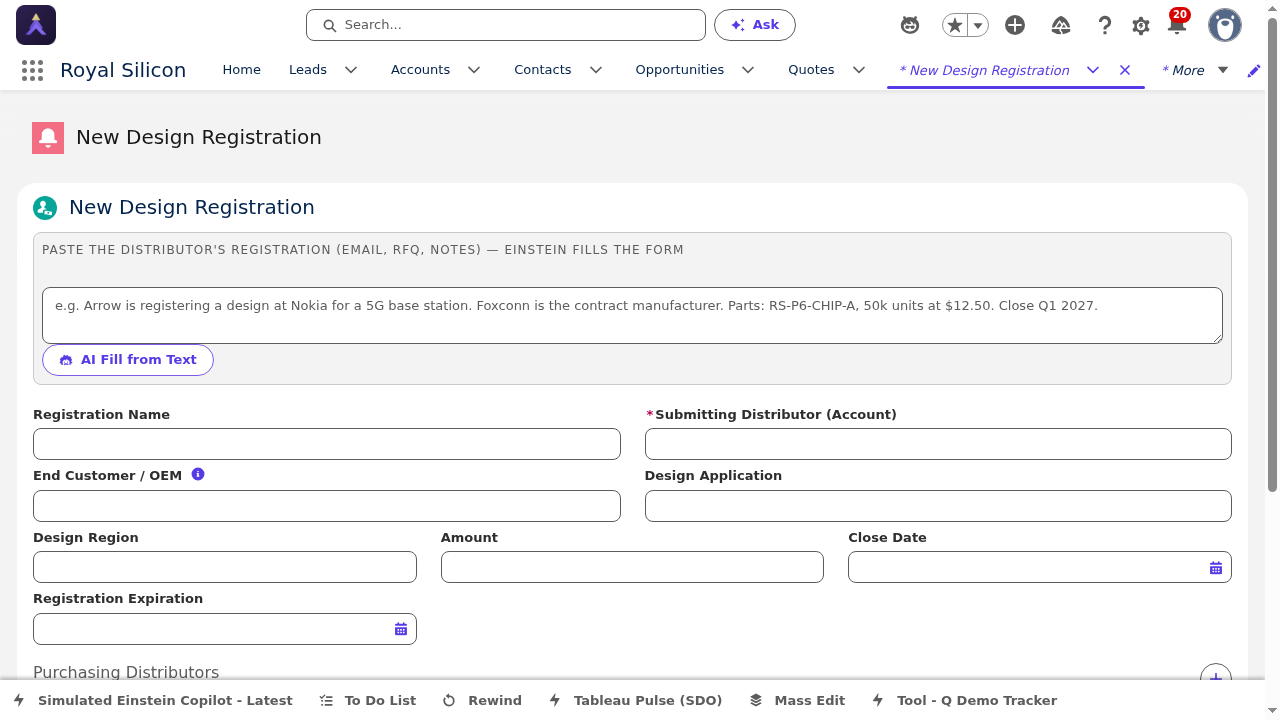
Channel partners submit Design Registrations through the
Royal Silicon Partner Portal, an Experience Cloud
site accessible at /rspartners. The portal provides a
guided intake form that captures all the information needed for the
internal team to evaluate the design opportunity.
Accessing the DReg Intake Form
Log in to the Royal Silicon Partner Portal at
/rspartners using your partner credentials.
Navigate to the Design Registrations section from the main navigation menu.
Click the New Design Registration button to open the DReg Intake form.
Complete all required fields on the intake form (details below).
Review your entries, then click Submit to send the DReg for internal review.
DReg Intake Form Fields
The intake form collects the following information from the partner:
| Section | Fields | Description |
|---|---|---|
| Customer Information | End Customer, Customer Account | The end customer where the design will be implemented |
| Design Details | Design Name, Application, End Market | Descriptive information about the design opportunity |
| Product Information | Product Family, Part Number(s), Quantity | Royal Silicon products being designed in |
| Timeline | Expected Design Win Date, Production Start | Key milestone dates for the design cycle |
| Volume & Revenue | Estimated Annual Units, Estimated Revenue | Projected volume and revenue for the design |
| Competition | Competitor(s), Competing Part Number(s) | Competitive landscape for this design opportunity |
| Additional Notes | Comments, Supporting Documents | Free-form notes and file attachments |
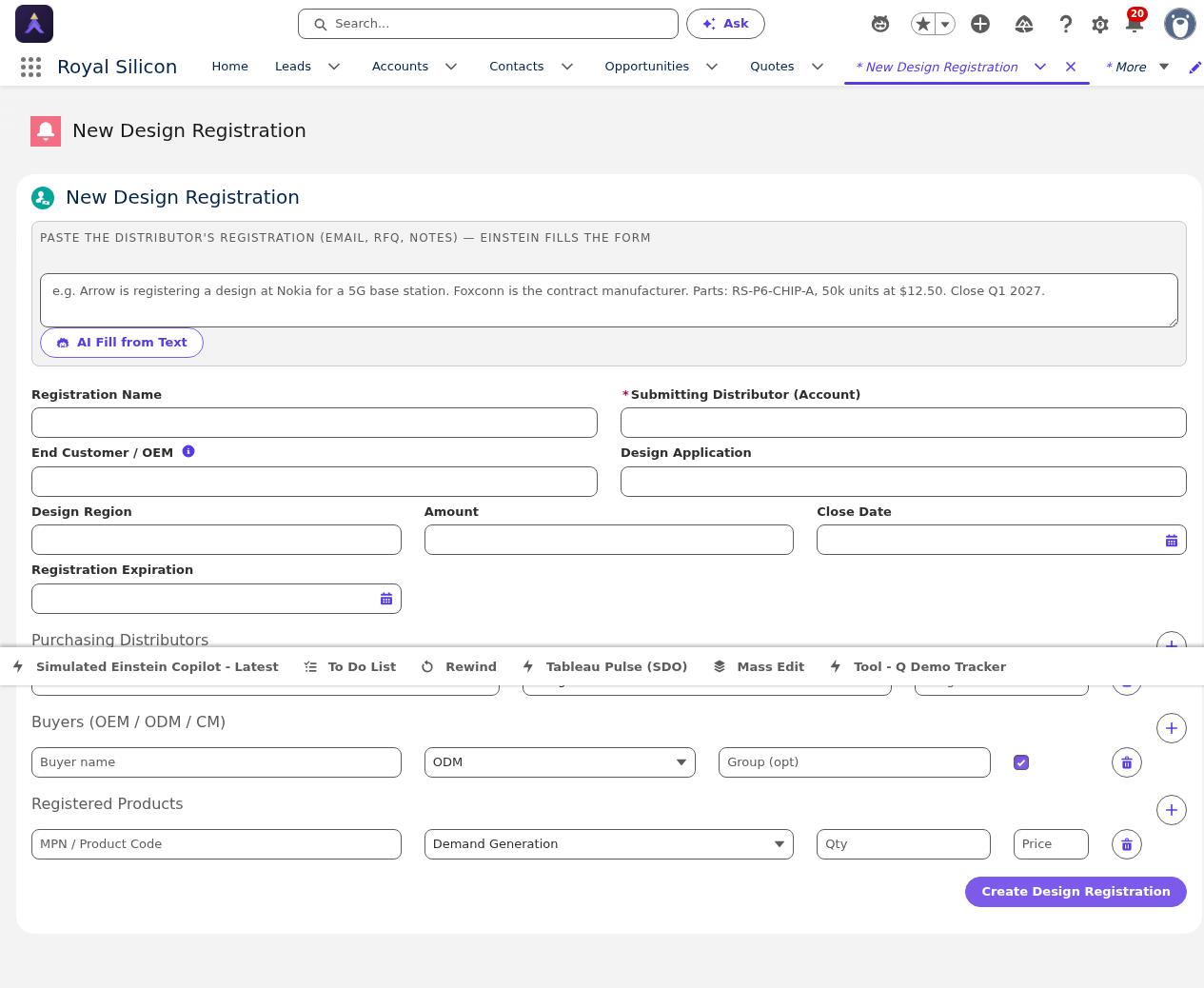
Encourage partners to fill in the Competition section thoroughly. DRegs with detailed competitive data receive faster review and higher approval rates because the internal team can immediately assess the strategic value of the design opportunity.
2.2 DReg Workbench (Internal Review)
The DReg Workbench is the internal tool used by the Royal Silicon team to review, evaluate, and action submitted Design Registrations. It provides a centralized view of all pending DRegs with powerful filtering, sorting, and bulk action capabilities.
Using the DReg Workbench
Navigate to the DReg Workbench from the Royal Silicon Semiconductor app navigation.
Use the filter bar at the top to narrow DRegs by status (Submitted, InReview), region, partner, or date range.
Click on a DReg row to open it in detail, or select multiple rows using checkboxes for bulk actions.
Review the DReg details, check for duplicates, validate eligibility, and assess the design opportunity.
Use the action buttons to Approve, Reject, or mark as Not Selected. Add review comments as needed.
- Filter Bar — Filter by Status, Region, Partner Account, Product Family, and Date Range
- Sortable Columns — Click column headers to sort by any field (submission date, partner, revenue, etc.)
- Bulk Actions — Select multiple DRegs to approve, reject, or reassign in batch
- Inline Preview — Hover or click a row to see key DReg details without opening the full record
- Duplicate Detection — System flags potential duplicate registrations for the same design opportunity
Set up a daily routine to review the DReg Workbench. Use the "Submitted" status filter to see new registrations first. Prioritize DRegs with higher estimated revenue and those from strategic partner accounts. Timely reviews improve partner satisfaction and accelerate the design-to-revenue cycle.
2.3 DReg Record Page
The DReg record page provides a comprehensive view of an individual Design Registration. It is organized into two primary tabs: Details and Related. The record page is where you perform detailed review, update field values, and manage the DReg status through its lifecycle.
Details Tab
The Details tab contains the following major sections:
| Section | Contents |
|---|---|
| Design Details | Design Name, Application, End Market, Description, and design-specific metadata |
| Account & Address | Partner Account, End Customer Account, Billing and Shipping addresses |
| Milestones | Key dates including Design Win Date, Sampling Date, Production Start, and End of Life |
| Region / Eligibility / Pricing | Region assignment, eligibility criteria status, and pricing-related fields |
Related Tab
The Related tab contains the following related lists:
| Related List | Description |
|---|---|
| Line Items | Individual product line items registered in this DReg, each with part number, quantity, and pricing |
| Purchasing Customers | End customers who will be purchasing through this design registration |
Status Workflow
The DReg status follows this defined workflow:
Alternatively, from InReview the DReg may transition to Rejected or NotSelected.
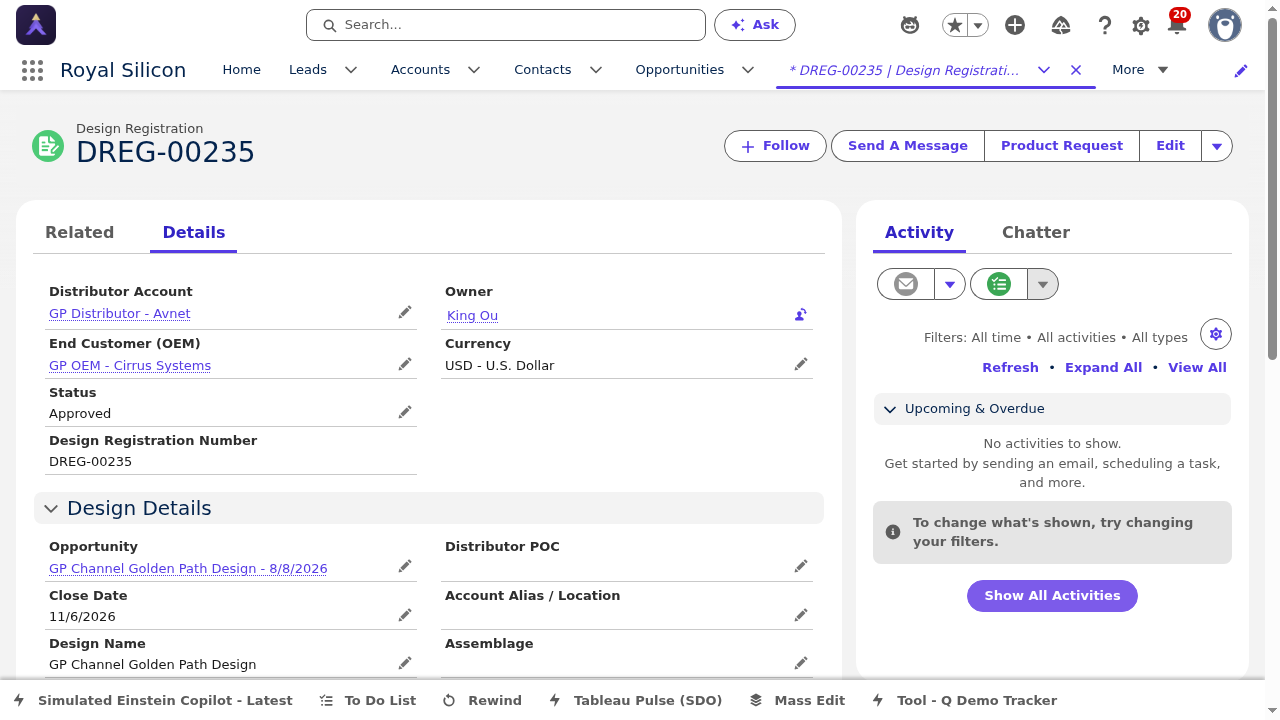
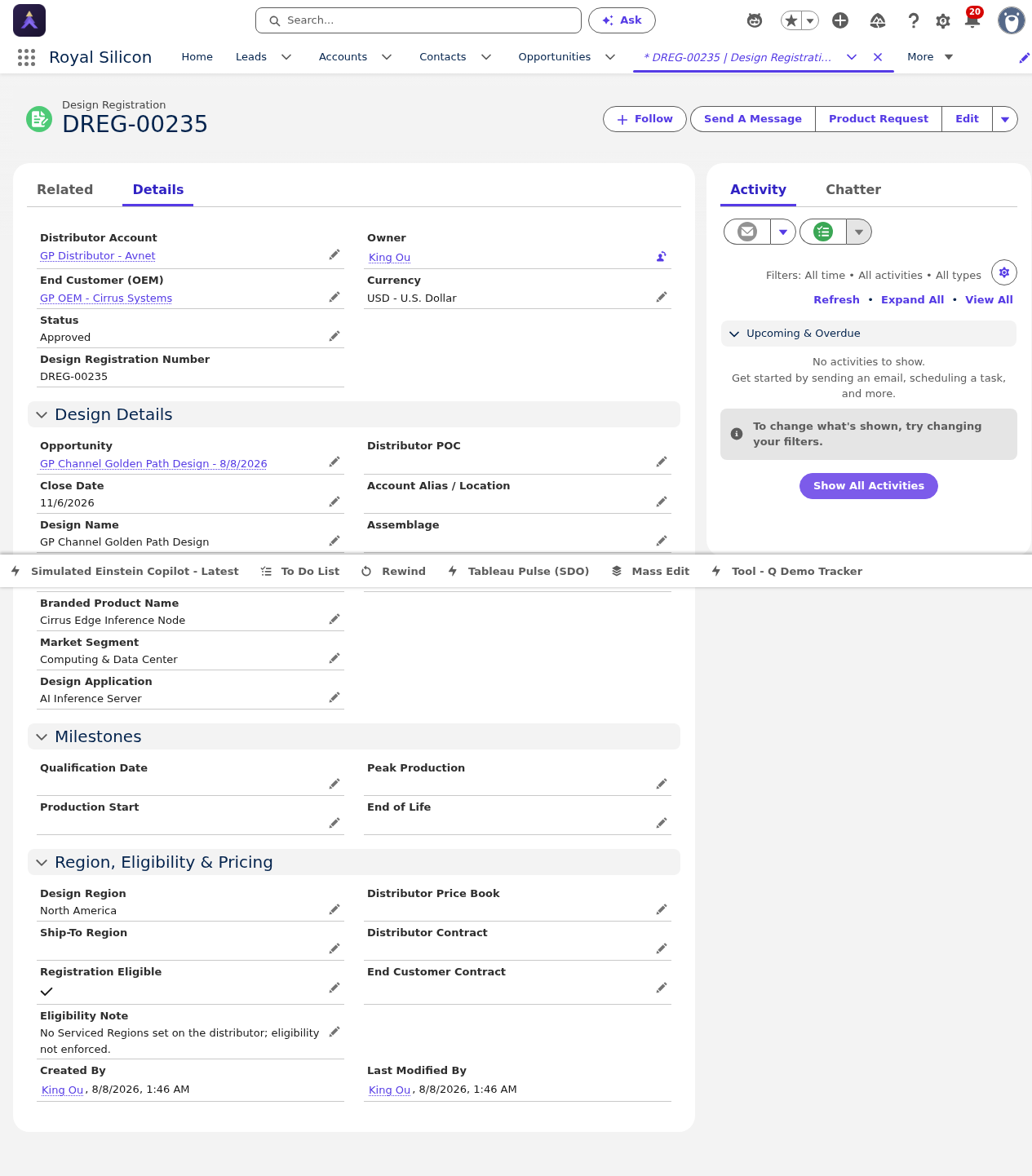
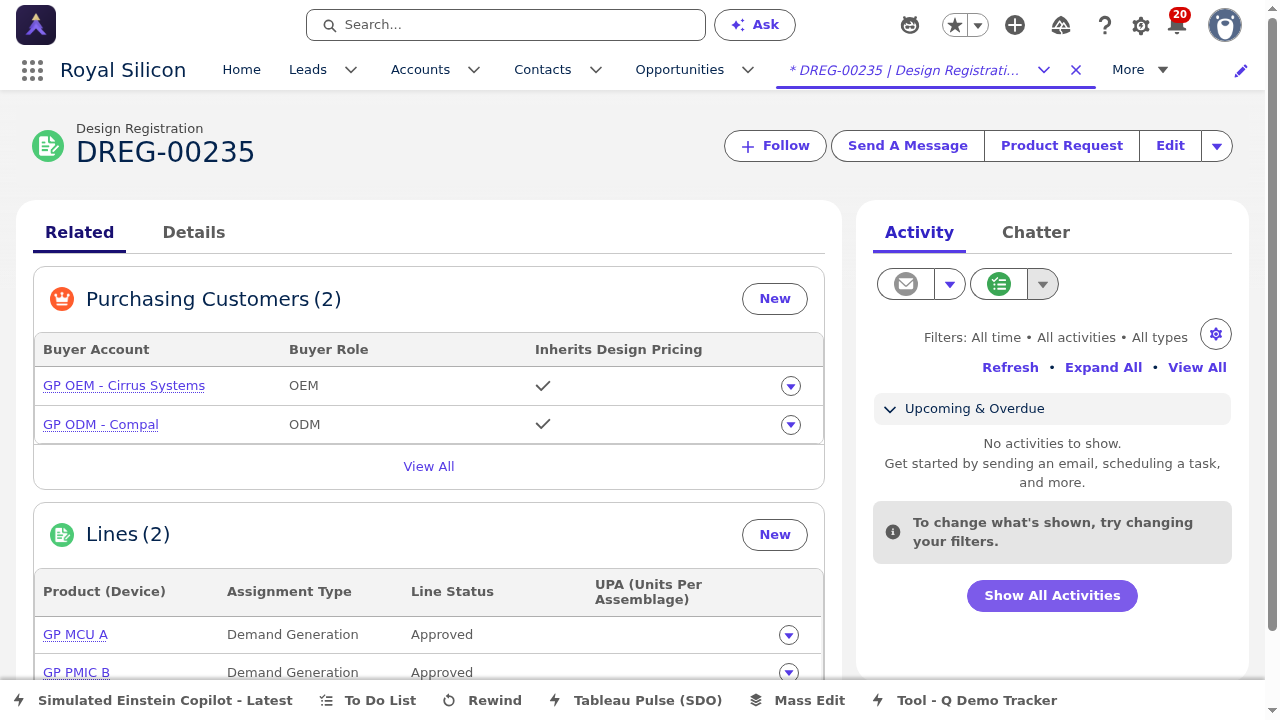
- Path Assistant — Visual status indicator at the top of the record showing the current lifecycle stage
- Collapsible Sections — Click section headers to expand or collapse for focused review
- Inline Editing — Double-click fields to edit values directly on the record page
- Related Lists — Navigate to the Related tab to manage Line Items and Purchasing Customers
- Action Buttons — Approve, Reject, or Convert buttons appear based on the current DReg status
2.4 DReg List View
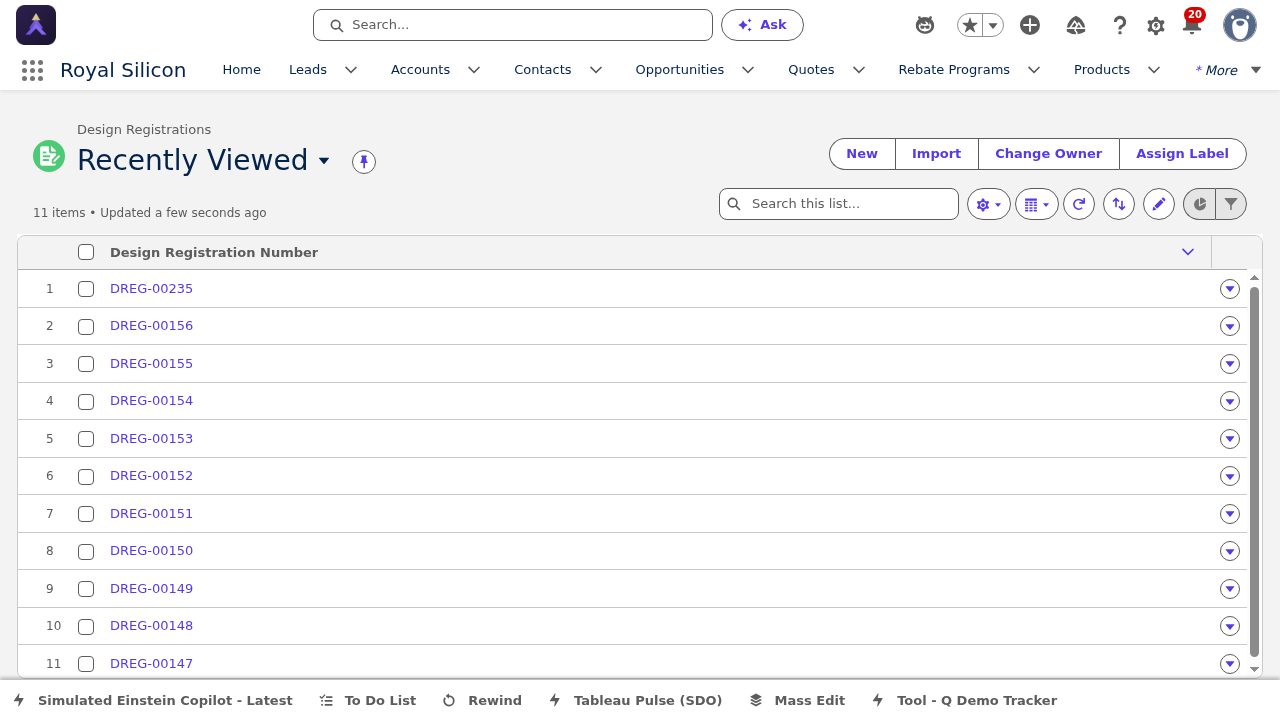
The DReg List View provides a standard Salesforce list view for browsing and filtering all Design Registration records. Unlike the Workbench, the list view follows standard Salesforce Lightning list view conventions and can be customized with saved filter configurations.
Navigating the DReg List View
Open the Design Registrations tab from the app navigation to access the list view.
Use the list view selector dropdown to choose a predefined view (e.g., "My DRegs," "All Submitted," "Approved This Month").
Click column headers to sort records. Use the filter icon to add field-level filters.
Click on any DReg Name to open the full DReg record page.
Create custom list views for your most common filtering scenarios. For example, set up a "My Region — Pending Review" list view to quickly see all DRegs in your territory that need attention. Pin your most-used list view as the default for faster navigation.
2.5 DReg-to-Opportunity Conversion
Once a Design Registration is approved, it can be converted into a Salesforce Opportunity. This conversion process automatically creates a new Opportunity record and populates it with data from the DReg, ensuring continuity from design registration through the sales cycle.
Conversion Process
Open the approved DReg record and verify the status is Approved.
Click the Convert to Opportunity button on the DReg record page.
Review the pre-populated Opportunity fields in the conversion dialog. Make any necessary adjustments.
Click Convert to create the Opportunity. You will be redirected to the new Opportunity record.
The original DReg record retains a lookup reference to the created Opportunity for traceability.
Data Mapping: DReg to Opportunity
The following data is automatically carried over during conversion:
| DReg Field | Opportunity Field | Notes |
|---|---|---|
| Design Name | Opportunity Name | Prefixed with partner name for identification |
| End Customer Account | Account | Links the Opportunity to the end customer |
| Partner Account | Partner (lookup) | Maintains the partner relationship on the Opportunity |
| Estimated Revenue | Amount | Initial revenue estimate from the DReg |
| Expected Design Win Date | Close Date | Used as the initial close date |
| Product Family | Product Family | Maps to the same product family |
| Application / End Market | Application / End Market | Custom fields carried over for market analysis |
| Line Items | Opportunity Products | Each DReg line item creates a corresponding Opportunity Product |
| Region | Region | Territory assignment carries over for routing |
The DReg-to-Opportunity conversion is a one-time action and cannot be undone. Always verify the DReg data is complete and accurate before converting. Once converted, further updates should be made on the Opportunity record rather than the DReg.
After conversion, navigate to the new Opportunity and complete the Project Detail section. The DReg provides the foundation, but the Opportunity should be enriched with additional sales intelligence, competitor details, and engagement history for a complete picture.
Rebate Program Management
This section covers the complete Rebate Management setup within the Royal Silicon Semiconductor Salesforce application. Rebate Programs define the rules, eligibility, and payout structures for Ship & Debit and other partner incentive programs. Understanding how to navigate, configure, and manage these programs is essential for the rebate lifecycle.
3.1 Rebate Programs List
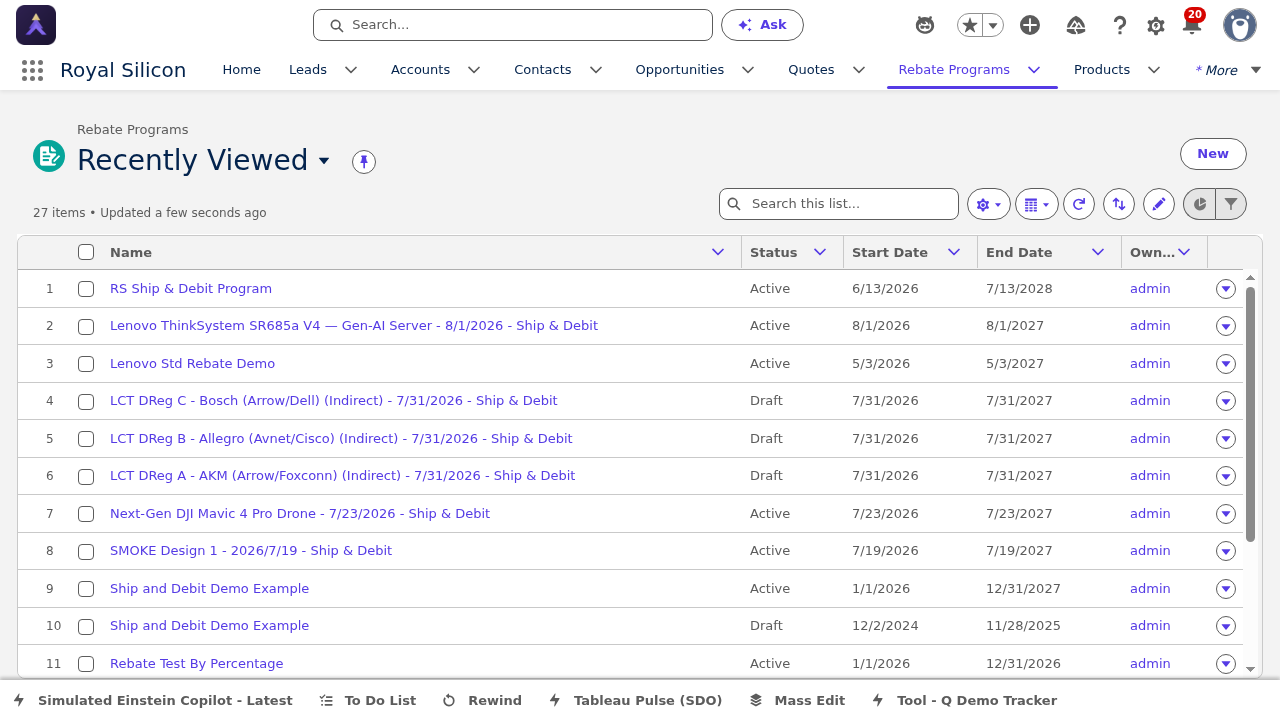
The Rebate Programs list view provides a centralized directory of all rebate programs in the system. From here, you can browse, filter, and navigate to individual program records.
Navigating Rebate Programs
Navigate to the Rebate Programs tab from the app navigation bar.
Use the list view selector to switch between views such as "All Programs," "Active Programs," or "My Programs."
Use column sorting and filtering to locate specific programs by name, status, date range, or program type.
Click on a Program Name to open the full Rebate Program record page.
3.2 Rebate Program Record
The Rebate Program record page contains all configuration details for a rebate program. It is organized into Details and Related tabs.
Details Tab
The Details tab is divided into the following sections:
| Section | Contents |
|---|---|
| Program Information | Program Name, Description, Program Type (e.g., Ship & Debit), Status, and Owner |
| Payout Information | Payout Method, Payment Terms, Currency, and Payout Frequency |
| Date Ranges | Program Start Date, Program End Date, and Enrollment Deadline |
| Status | Current program lifecycle status (Draft, Active, Expired, Cancelled) |
Related Tab
The Related tab contains the following related lists:
| Related List | Description |
|---|---|
| Members | Partner accounts enrolled in this rebate program |
| Payout Periods | Defined payout periods (monthly, quarterly, etc.) with associated amounts and statuses |
| Rebate Types | ProgramRebateType records defining calculation rules, benefits, and eligibility criteria |
Ship & Debit Program Configuration
For Ship & Debit programs specifically, the program record defines the rules by which distributors can claim rebates when they sell Royal Silicon products at prices below their acquisition cost. The difference between the distributor acquisition price and the authorized resale price is the rebate (debit) amount. Key configuration elements include:
- Program type set to Ship & Debit
- Authorized price tiers linked via Rebate Types
- POS validation rules to verify actual selling prices
- Payout periods aligned with distributor reporting cycles
- Member eligibility based on partner tier or territory
RS Ship & Debit Program Example
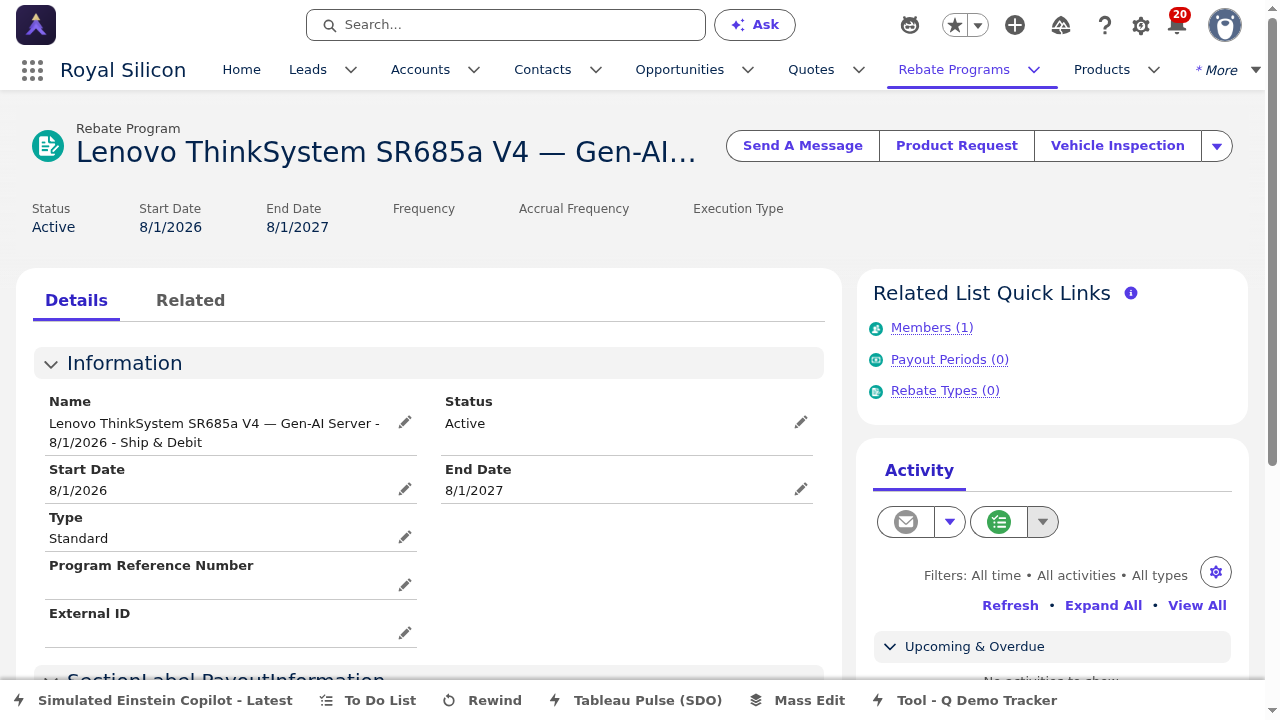
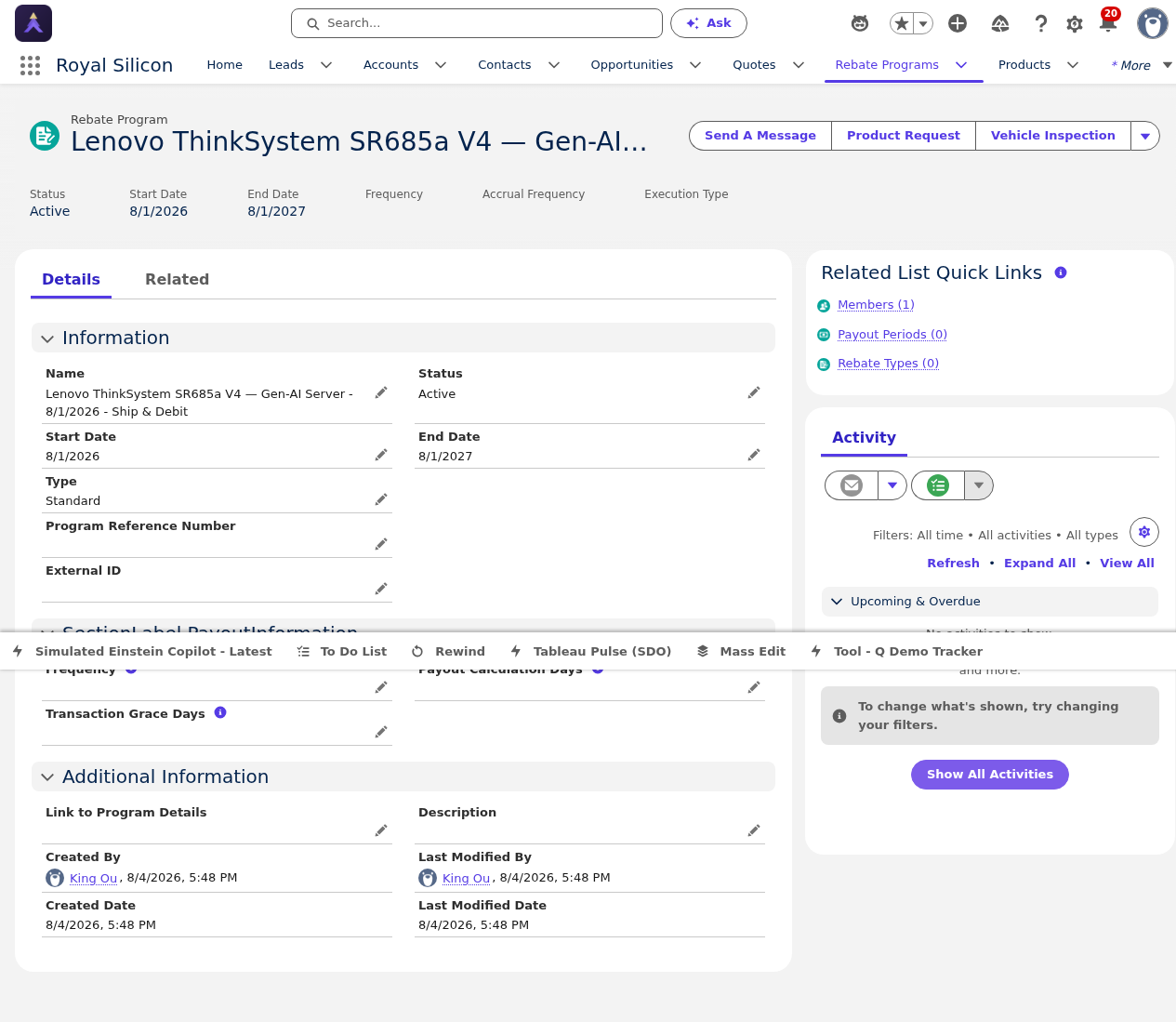
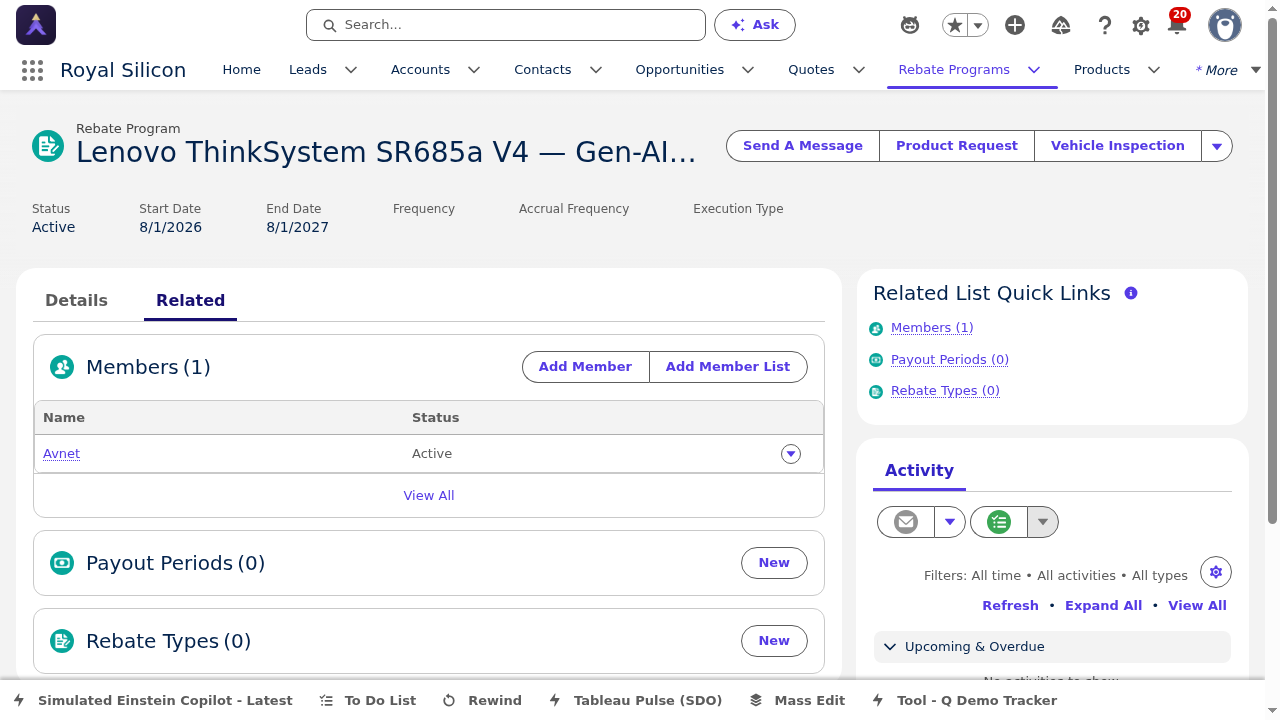
Below is the Royal Silicon Ship & Debit program as configured in the system. This serves as the primary Ship & Debit program for all qualifying partner accounts.
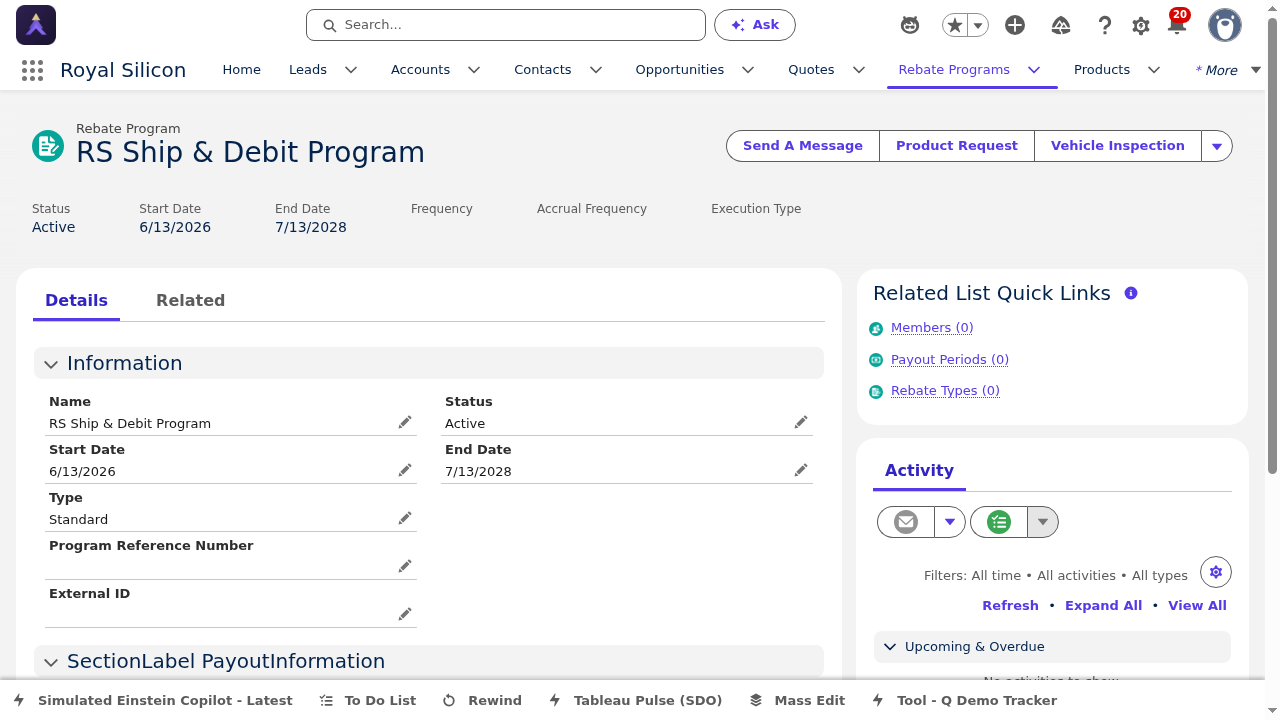
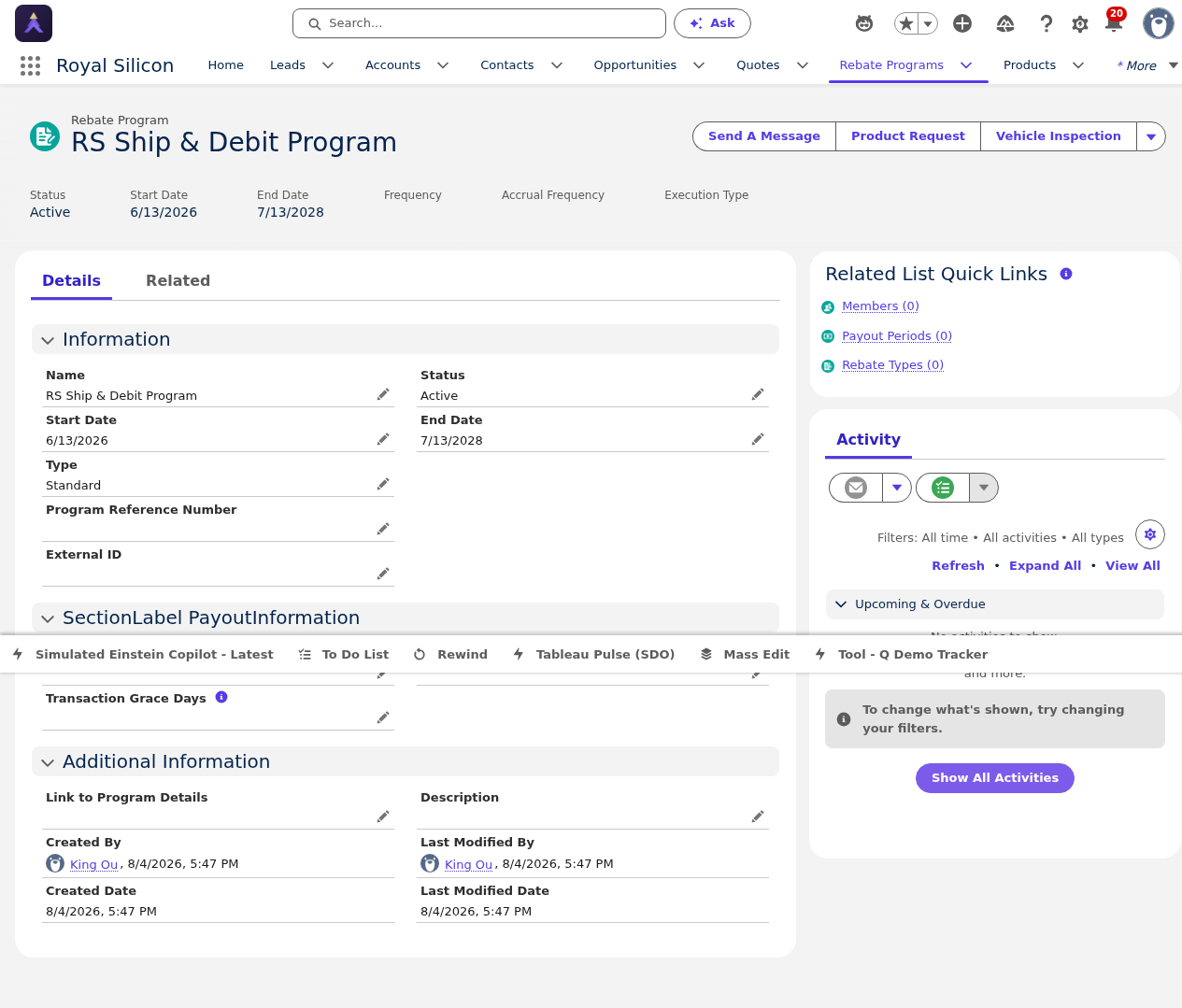
- Program Information — Name, type, description, and program owner for tracking and governance
- Payout Configuration — Defines how and when rebate amounts are disbursed to partners
- Date Management — Start/end dates control when the program is active and eligible for claims
- Member Management — Add, remove, and manage partner accounts enrolled in the program
- Rebate Types — Link ProgramRebateType records to define specific calculation and benefit rules
3.3 Rebate Type (ProgramRebateType)
A ProgramRebateType record defines the specific calculation rules, benefit structures, and eligibility criteria within a Rebate Program. Each Rebate Program can have one or more Rebate Types, each representing a different rebate structure or product category. This is where the financial mechanics of the rebate are configured.
Details Tab
The Details tab on a ProgramRebateType record includes:
| Section | Contents |
|---|---|
| Information | Rebate Type Name, Description, Associated Program, Status, and Type classification |
| Calculation Information | Calculation Method (Percentage, Fixed Amount, Tiered), Base Price Type, Rounding Rules |
| Benefit Information | Benefit Type, Minimum Threshold, Maximum Cap, and Accrual Method |
| Additional Information | Product eligibility criteria, territory restrictions, and custom metadata fields |
Benefits Tab
The Benefits tab is where Program Rebate Type Benefits are configured. These define the specific rebate tiers, percentage or fixed-amount benefits, and volume thresholds. For Ship & Debit programs, this is where authorized price points and rebate percentages are established for each product or product group.
Related Tab
The Related tab contains associated records such as qualifying products, benefit tiers, and claim history linked to this rebate type.
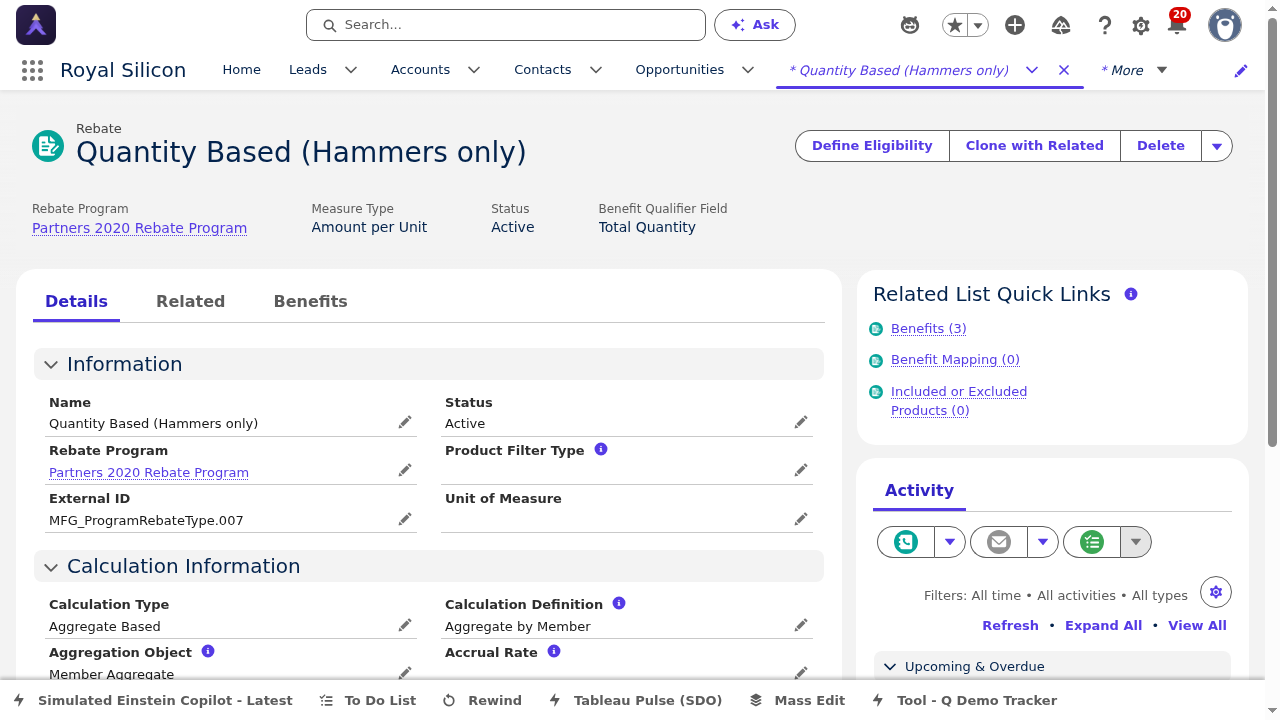
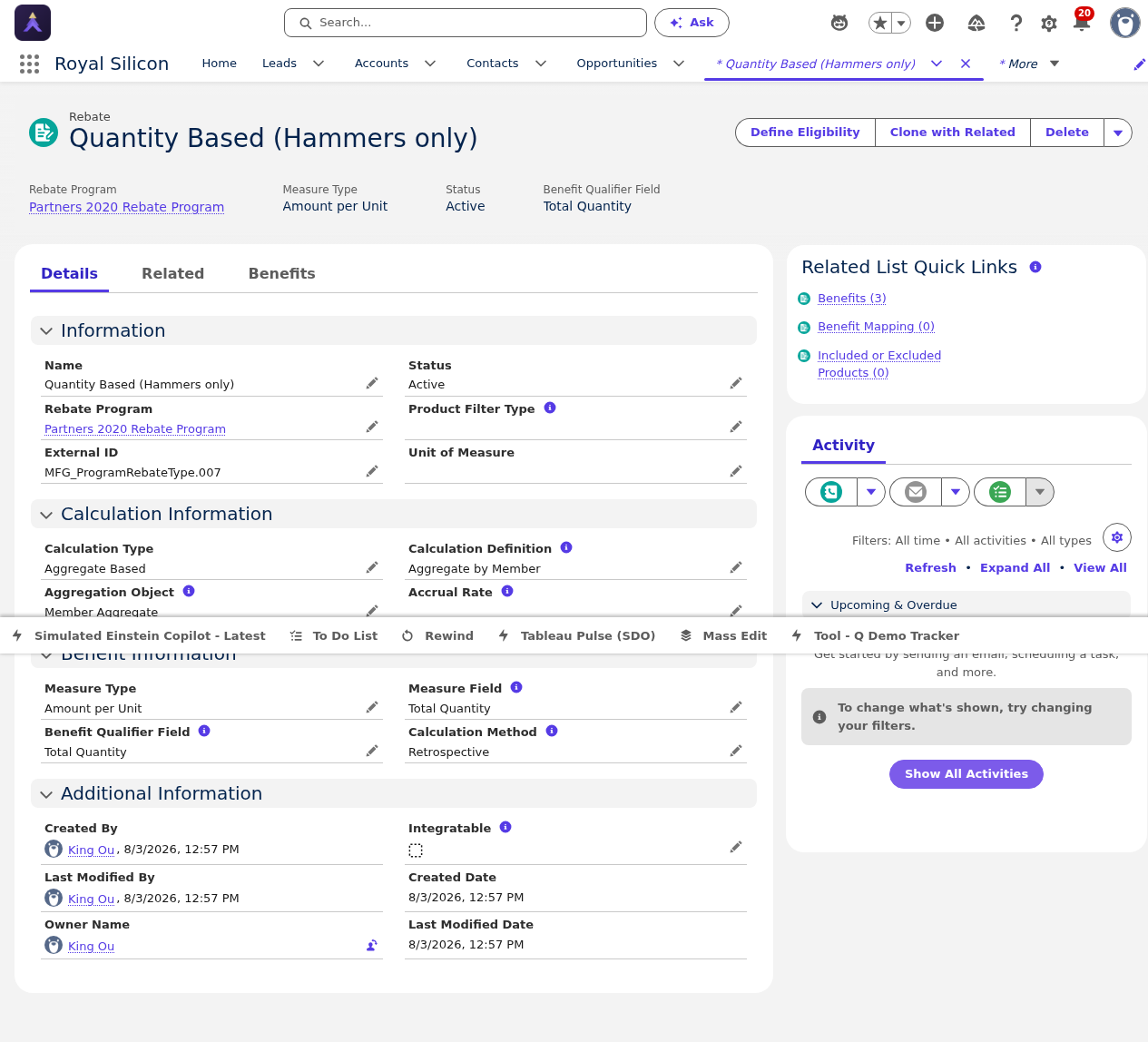
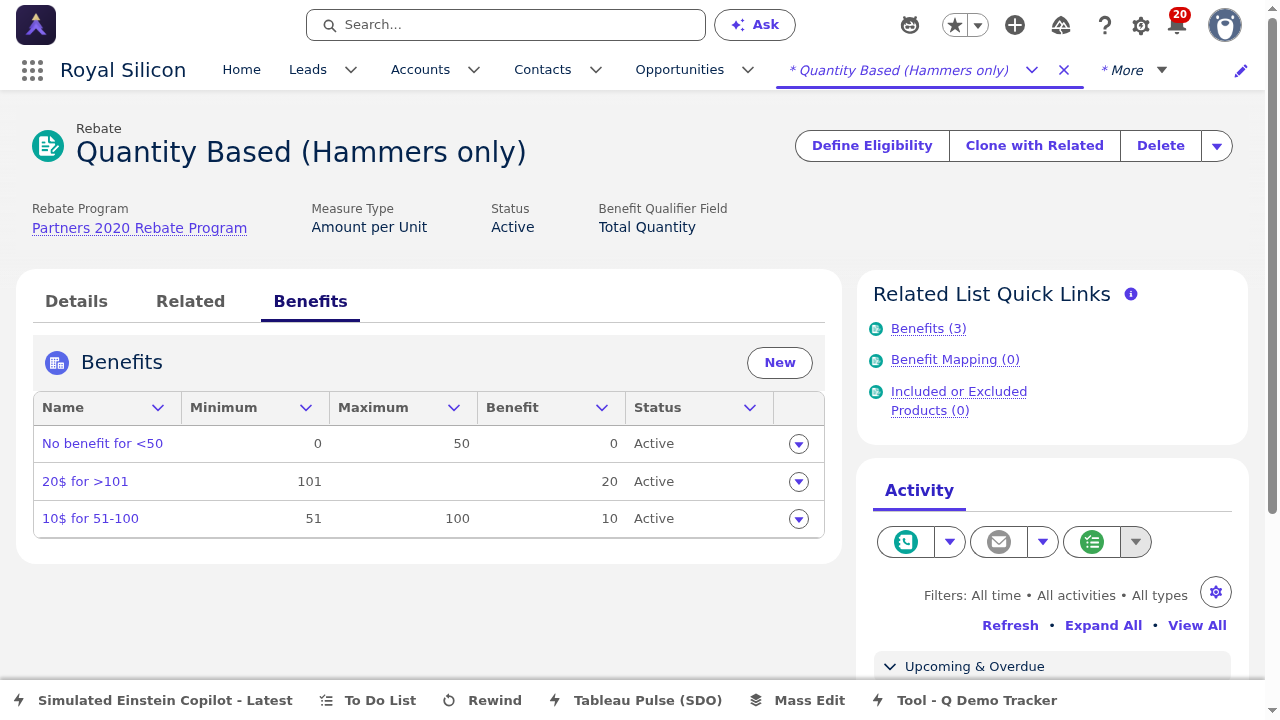
- Calculation Method — Choose from Percentage, Fixed Amount, or Tiered calculation for maximum flexibility
- Benefit Tiers — Configure volume-based tiers where higher volumes unlock better rebate rates
- Product Eligibility — Define which products or product families qualify for this rebate type
- Minimum/Maximum Caps — Set floor and ceiling values to control rebate exposure
- Accrual Method — Define whether benefits accrue per transaction, per period, or cumulatively
When configuring benefit tiers, start with your most common volume range and work outward. Ensure there are no gaps between tier thresholds — every possible volume should map to exactly one benefit tier. Test your tier configuration with sample data before activating the rebate type to avoid calculation errors during claims processing.
3.4 Standard Rebate Workbench
The Standard Rebate Workbench provides a centralized interface for managing standard (non-Ship & Debit) rebate programs. Use this workbench to view program status, manage enrollments, and monitor rebate activity across all standard programs.
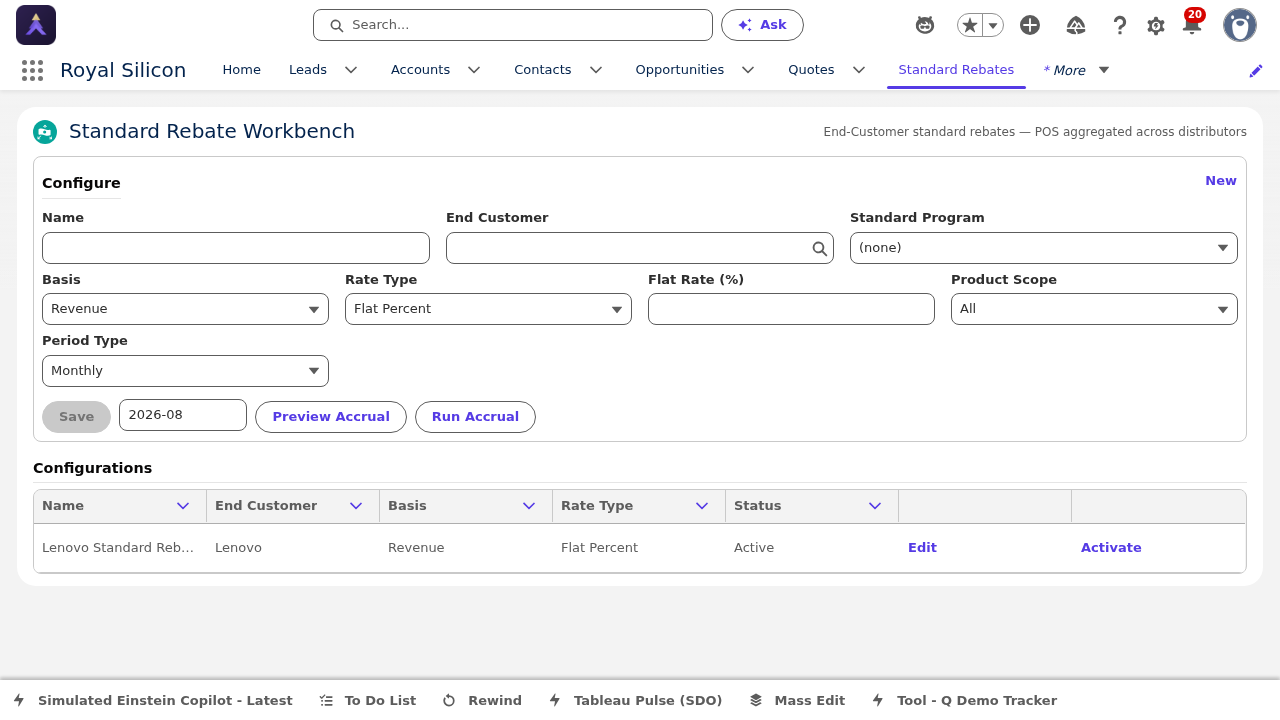
- Program Overview — At-a-glance view of all standard rebate programs with status indicators
- Enrollment Management — Add or remove partner members from programs
- Activity Monitoring — Track claim submissions, approvals, and payout progress
- Bulk Operations — Perform batch updates across multiple programs or enrollments
Claims & Payouts
This section covers the claims processing flow, from initial claim submission through validation, statement generation, and payout calculation. The claims workbenches provide the operational tools needed to manage the financial reconciliation side of the Ship & Debit rebate lifecycle.
4.1 Claims Workbench
The Claims Workbench is the primary interface for processing rebate claims. It provides a queue-based view of all submitted claims, with tools for reviewing, validating, approving, and rejecting individual claims or batches of claims.
Processing Claims
Navigate to the Claims Workbench from the app navigation.
Use the filter bar to narrow claims by status (Pending, Validated, Approved, Rejected), program, partner, or date range.
Select individual claims or use checkboxes for bulk selection to process multiple claims at once.
Review claim details including POS data, pricing, and calculated rebate amounts.
Use the Validate action to check claims against POS data and program rules. Approve or reject based on validation results.
Claim Validation and Approval
Each claim goes through a validation process that checks:
- POS Match — Does the claim match a valid Point-of-Sale transaction?
- Program Eligibility — Is the partner enrolled in the associated rebate program?
- Date Range — Does the transaction fall within the program's active dates?
- Product Eligibility — Is the product covered by the associated Rebate Type?
- Price Verification — Is the claimed price consistent with the authorized price in the Rebate Type Benefits?
- Duplicate Check — Has this transaction already been claimed?
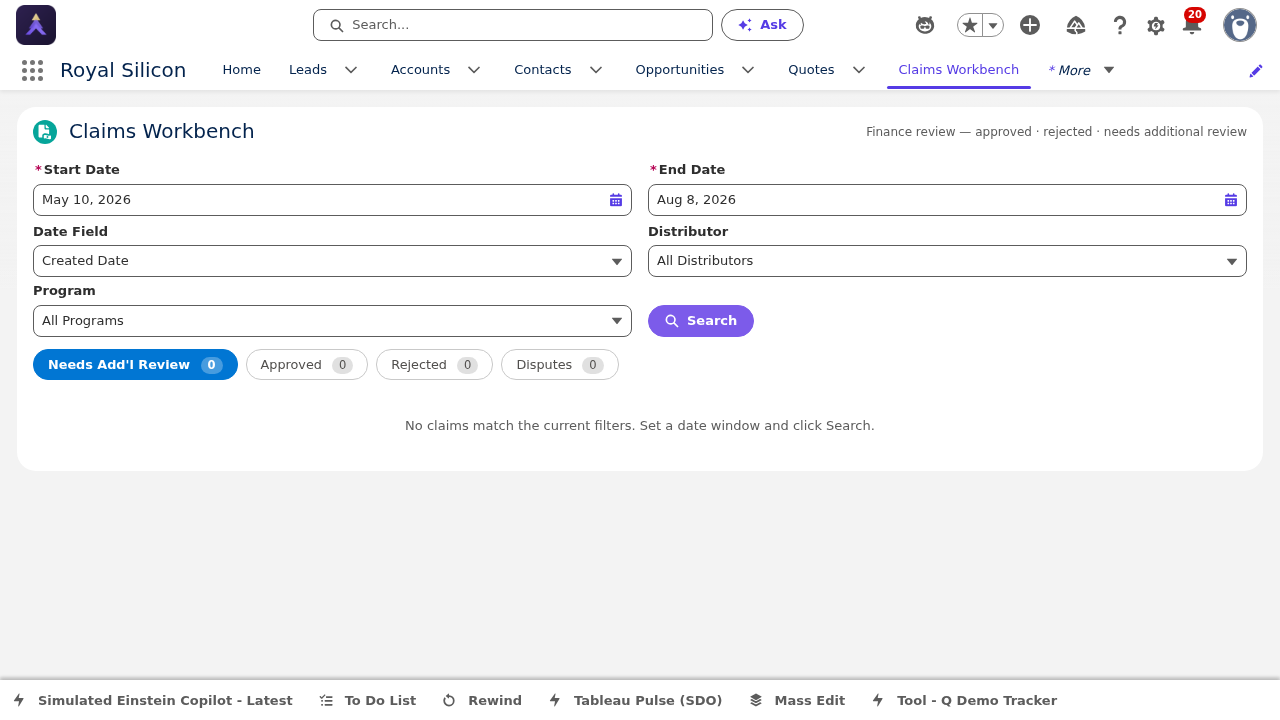
- Queue View — Prioritized list of claims requiring attention, sorted by submission date
- Bulk Validation — Validate and approve multiple claims simultaneously for efficiency
- Claim Detail Panel — Click a claim to expand a detail panel showing POS data and calculation breakdown
- Exception Handling — Flag and route exceptional claims that require manual review or escalation
- Audit Trail — Complete history of all actions taken on each claim for compliance
Process claims in chronological order within each payout period. This ensures that volume-based tier calculations are applied correctly. Claims processed out of order may need to be recalculated if they push the partner into a different benefit tier mid-period.
4.2 Claim Statement Workbench
The Claim Statement Workbench is used to generate and manage claim statements. A claim statement is a consolidated document that summarizes all approved claims for a given partner and payout period, providing a single reference for financial reconciliation and payment processing.
Generating Claim Statements
Navigate to the Claim Statement Workbench from the app navigation.
Select the Payout Period and Program for which you want to generate statements.
The workbench displays all approved claims eligible for the selected period, grouped by partner.
Click Generate Statements to create consolidated claim statements for each partner.
Review the generated statements and click Finalize to lock them for payout processing.
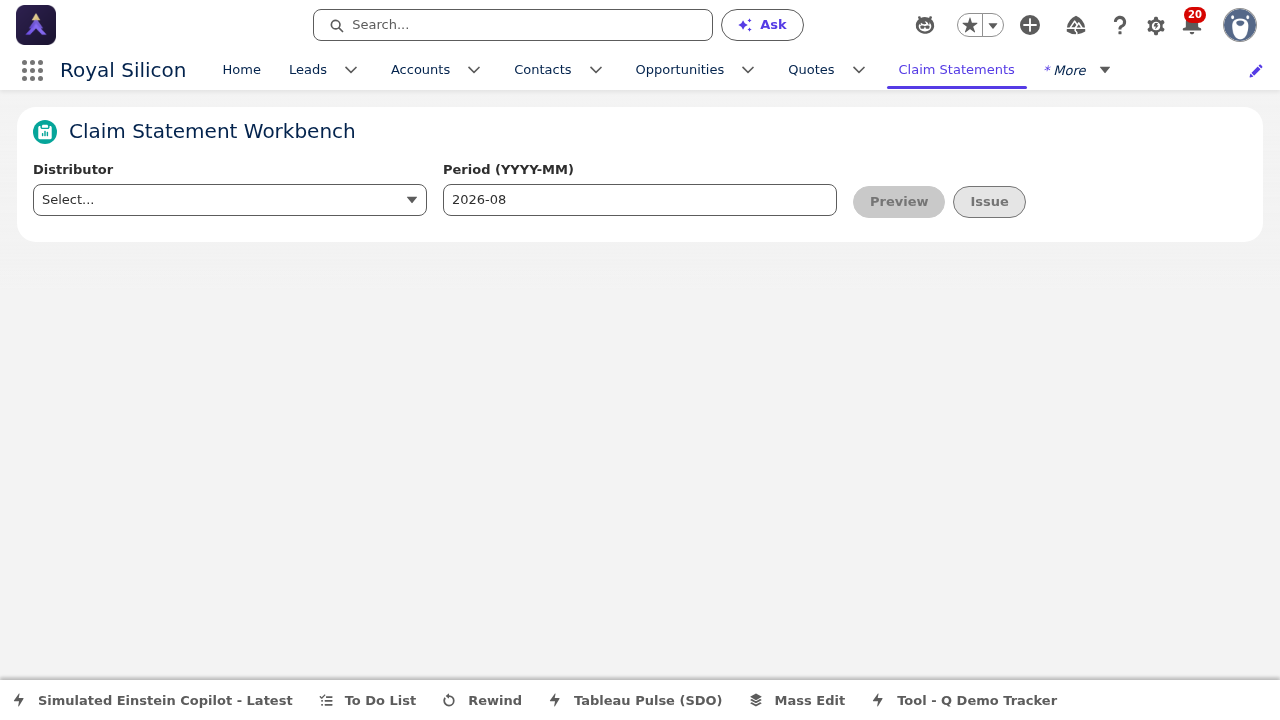
Always generate statements at the end of a payout period after all claims have been processed. If additional claims are approved after a statement is generated but before it is finalized, you can regenerate the statement to include the new claims. Once finalized, statements cannot be modified — any adjustments require a new correction statement.
4.3 Index Workbench
The Index Workbench manages price indices used in rebate calculations. Price indices provide reference pricing data that the system uses to calculate rebate amounts, verify claimed prices against market benchmarks, and maintain pricing consistency across the rebate program.
Key Index Operations
Navigate to the Index Workbench from the app navigation.
View current price indices organized by product family, region, and effective date.
Upload new index data via CSV import or enter values manually for individual products.
Set effective dates to control when new pricing takes effect in rebate calculations.
Archive expired indices to maintain a clean working set while preserving historical data.
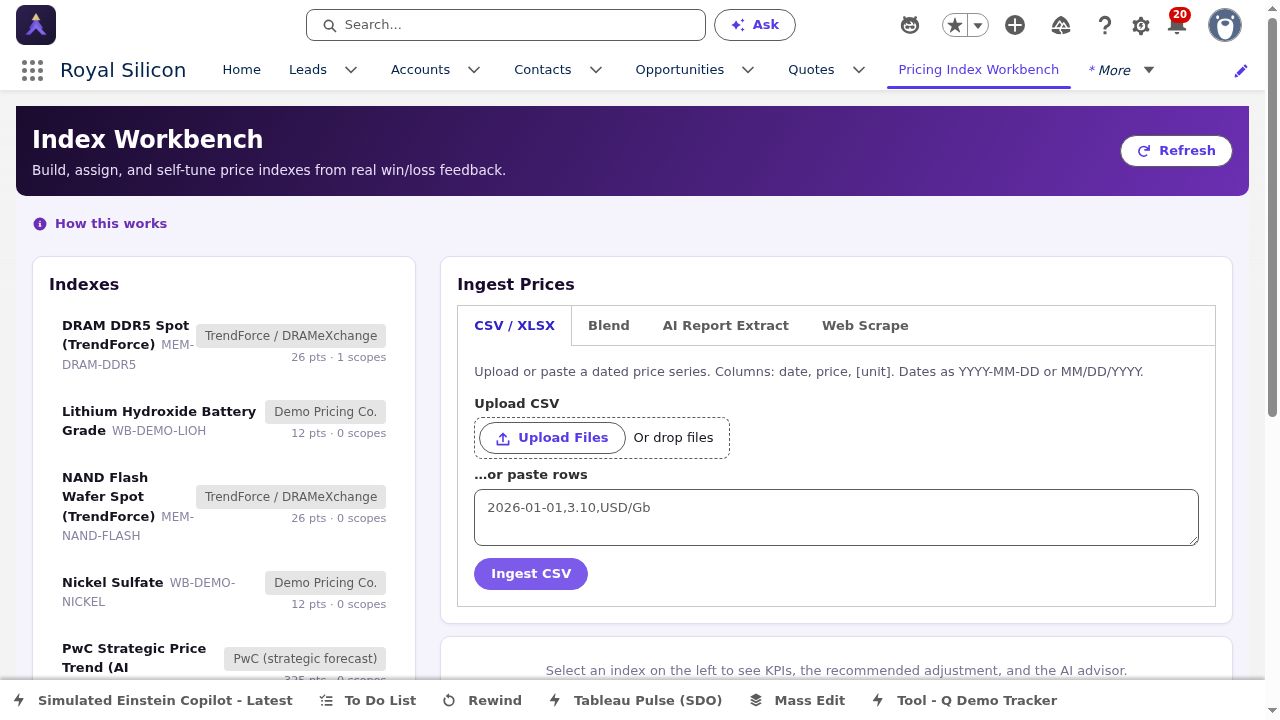
- Index Table — View and edit price indices with inline editing capabilities
- CSV Import — Bulk upload price index data from spreadsheet files
- Effective Dating — Set future effective dates for price changes without disrupting current calculations
- Version History — Track all changes to index values with full audit trail
- Product Mapping — Map indices to specific products or product families for precise calculation
4.4 POS Validation
Point-of-Sale (POS) Validation is the critical process of matching partner-submitted sales data against rebate program rules to verify that claimed transactions are legitimate and eligible for rebate payments. This is the gatekeeper between raw sales data and approved rebate claims.
How POS Validation Works
Data Upload — Partners or distributors upload POS data files (typically CSV format) containing transaction-level sales details including part numbers, quantities, prices, dates, and end-customer information.
Data Parsing — The system parses the uploaded file, maps columns to expected fields, and creates individual POS transaction records.
Validation Rules — Each POS transaction is validated against a set of rules: product eligibility, date range, partner enrollment, price thresholds, and duplicate detection.
Match Results — Transactions are categorized as Matched (passed all validations), Unmatched (failed one or more rules), or Partial Match (requires manual review).
Claim Generation — Matched POS transactions automatically generate rebate claims that flow into the Claims Workbench for final processing.
Batch Processing Workflow
POS validation typically runs in batch mode for efficiency. The batch processing workflow follows this sequence:
POS files must follow the Royal Silicon standard template format. Files with incorrect column mappings, missing required fields, or invalid data types will be rejected during the parsing step. Ensure partners are using the latest POS upload template, which is available for download from the Partner Portal.
Review the exception report after each batch run before generating claims. Common exceptions include pricing mismatches (partner sold at a price different from the authorized price) and date boundary issues (transactions on the first or last day of a payout period). Resolving these exceptions promptly prevents payout delays.
4.5 Payout Calculation
Payout Calculation is the final step in the claims lifecycle. Once claims have been validated and approved, the system calculates the total rebate amount owed to each partner for a given payout period. The Ship & Debit Workbench provides tools for managing this process.
How Payouts Are Calculated
The payout calculation engine follows these steps for each approved claim:
Identify Rebate Type — The system determines which ProgramRebateType applies to the claim based on product, partner, and program rules.
Apply Calculation Method — Based on the Rebate Type's calculation method (Percentage, Fixed Amount, or Tiered), the system computes the rebate amount for each claim line.
Apply Benefit Tiers — If the calculation method is Tiered, the system evaluates cumulative volume or revenue for the period and applies the appropriate tier rate.
Apply Caps & Floors — Minimum threshold and maximum cap values from the Rebate Type are applied to ensure payouts fall within defined bounds.
Aggregate by Partner — Individual claim amounts are aggregated by partner account for the payout period to produce a single payout amount per partner.
Generate Payout Record — A payout record is created for each partner, linked to the payout period, with the calculated total and supporting claim details.
Payout Periods and Schedules
Payout periods define the time intervals at which rebate amounts are calculated and disbursed. The schedule is configured at the Rebate Program level and can be set to:
| Frequency | Description | Typical Use Case |
|---|---|---|
| Monthly | Payouts calculated and disbursed every calendar month | High-volume programs with frequent transactions |
| Quarterly | Payouts calculated every three months | Standard Ship & Debit programs |
| Semi-Annual | Payouts calculated every six months | Strategic programs with longer evaluation cycles |
| Annual | Payouts calculated once per year | Growth incentive and loyalty programs |
- Period Selection — Choose the payout period to calculate, with clear status indicators for each period
- Calculation Engine — Automated calculation applying all Rebate Type rules, tiers, and caps
- Preview Mode — Preview calculated amounts before committing to see projected payouts
- Adjustment Support — Apply manual adjustments with documentation for audit compliance
- Export — Export payout details to CSV or PDF for finance team processing
Always use the Preview mode before finalizing payout calculations. This allows you to catch any anomalies — such as unusually large payouts or zero-value calculations — before they are committed. Share the preview report with the finance team for a final sign-off before processing payouts to avoid costly corrections.
End-to-End Workflow
This section provides a complete, numbered step-by-step walkthrough of the entire DReg-to-Ship & Debit lifecycle. Follow these steps in sequence to understand how a design opportunity moves from initial partner registration all the way through to rebate payout. Each step references the relevant screenshots and pages in this guide.
Step 1 Partner Submits DReg via Portal
A channel partner logs in to the
Royal Silicon Partner Portal (Experience Cloud site
at /rspartners) and completes the
DReg Intake Form. The partner provides customer
information, design details, product selections, timeline
milestones, volume estimates, and competitive context. Once all
required fields are completed, the partner clicks
Submit.
Reference: Page 2, Section 2.1 — Partner Portal Submission | Screenshots: DReg Intake Form
Step 2 Internal Team Reviews in DReg Workbench
The submitted DReg appears in the DReg Workbench, where the internal Royal Silicon team reviews it. Reviewers check for completeness, validate eligibility against territory and product rules, screen for duplicate registrations, and assess the strategic value of the design opportunity. The DReg status transitions from Submitted to InReview.
Reference: Page 2, Section 2.2 — DReg Workbench | Screenshot: DReg Workbench
Step 3 DReg Approved and Converted to Opportunity
After a thorough review, the reviewer approves the DReg, transitioning its status to Approved. The reviewer then clicks Convert to Opportunity on the DReg record page. The system creates a new Opportunity record, automatically mapping the DReg's design data, customer information, product details, and volume estimates to the Opportunity fields. The DReg retains a reference link to the newly created Opportunity.
Reference: Page 2, Sections 2.3 & 2.5 — DReg Record & Conversion | Screenshots: DReg Record
Step 4 Opportunity Managed
The newly created Opportunity is managed through the standard Opportunity lifecycle (covered in Path 1). The sales team enriches the Opportunity with project details, runs Einstein Market Analysis, builds out the Bill of Material, configures demand forecasts, and manages the opportunity through its stages toward a design win.
Reference: Path 1 Training Guide — Opportunity Record | All Opportunity features apply
Step 5 Quote Created with Pricing
Once the Opportunity reaches the appropriate stage, a Quote is created with detailed pricing. The Quote includes line items, pricing tiers, competitive analysis, and approval workflows. The Quote goes through the approval process and, once approved, establishes the authorized pricing that will feed into the rebate program.
Reference: Path 1 Training Guide — Quote Record | Quote Line Editor, Pricing Workbench, Approvals
Step 6 Rebate Program Auto-Generated from Opportunity
When the deal structure requires partner rebates (e.g., Ship & Debit arrangements), a Rebate Program is generated linked to the Opportunity. The program is configured with the appropriate type (Ship & Debit), date ranges aligned with the design cycle, payout frequency, and enrolled partner members.
Reference: Page 3, Section 3.2 — Rebate Program Record | Screenshots: Rebate Program
Step 7 Rebate Types Configured with Benefit Tiers
ProgramRebateType records are created within the Rebate Program to define the specific calculation rules. Each Rebate Type specifies the calculation method (Percentage, Fixed, or Tiered), eligible products, and benefit tiers. The Benefits tab is configured with volume thresholds and corresponding rebate rates to incentivize higher-volume commitments from partners.
Reference: Page 3, Section 3.3 — Rebate Type | Screenshots: Rebate Type Benefits
Step 8 POS Data Uploaded and Validated
As partners make sales, they upload Point-of-Sale (POS) data files containing transaction details. The POS validation engine parses the data, matches transactions against registered designs and program rules, and categorizes results as Matched, Unmatched, or Partial Match. Exceptions are flagged for manual review.
Reference: Page 4, Section 4.4 — POS Validation | Batch processing workflow
Step 9 Claims Generated and Processed
Validated POS transactions automatically generate rebate claims that appear in the Claims Workbench. The operations team reviews, validates, and approves claims. Once approved, claims are consolidated into Claim Statements via the Claim Statement Workbench for each partner and payout period.
Reference: Page 4, Sections 4.1 & 4.2 — Claims Workbench & Claim Statement Workbench
Step 10 Payouts Calculated and Disbursed
At the end of each payout period, the payout calculation engine aggregates all approved claims, applies Rebate Type calculation rules and benefit tiers, enforces caps and floors, and produces a total payout amount for each partner. Payout records are generated, reviewed in Preview mode, and then finalized for disbursement through the finance team.
Reference: Page 4, Section 4.5 — Payout Calculation | Ship & Debit Workbench
Complete Flow Summary
The following diagram summarizes the complete end-to-end lifecycle from DReg submission through payout:
Reference
This section provides glossary definitions, status reference tables, key field references, and partner portal access information for quick lookup.
Glossary of Terms
DReg (Design Registration)
A formal registration submitted by a channel partner to claim a design opportunity with a specific end customer. The DReg records the partner's intent to design Royal Silicon products into a customer's application and, when approved, grants the partner exclusive or priority status for that design.
Ship & Debit
A rebate program model in which a distributor sells products at a price below their acquisition cost and then submits a claim (debit) to the manufacturer for the difference. The manufacturer "ships" at list price and the distributor "debits" back the authorized discount amount.
POS (Point of Sale)
Transaction-level sales data submitted by partners or distributors showing actual end-customer sales. POS data includes part numbers, quantities, prices, dates, and customer information. It is used to validate rebate claims.
Rebate Program
A configured program in Salesforce that defines the rules, eligibility, date ranges, and payout structure for partner rebate incentives. A program can contain multiple Rebate Types and enrolled Members.
ProgramRebateType
A child record of a Rebate Program that defines the specific calculation method, eligible products, and benefit tier structure for a category of rebate claims. Each Rebate Type can use Percentage, Fixed Amount, or Tiered calculation methods.
Claim
A rebate claim record representing a partner's request for rebate payment on a specific transaction or set of transactions. Claims are validated against POS data and program rules before approval.
Claim Statement
A consolidated document summarizing all approved claims for a specific partner and payout period. Claim statements are the basis for financial reconciliation and payment processing.
Payout
The calculated rebate amount owed to a partner for a given payout period. Payouts are generated from approved claims using the Rebate Type's calculation rules and benefit tiers.
Payout Period
A defined time interval (monthly, quarterly, semi-annual, or annual) at which rebate amounts are calculated and disbursed to partners.
Benefit Tier
A volume or revenue threshold within a Rebate Type that determines the rebate rate. Higher tiers typically offer better rebate percentages, incentivizing partners to achieve greater sales volumes.
Index
A reference price value used in rebate calculations to establish baseline pricing against which actual transaction prices are compared. Indices are managed through the Index Workbench.
DReg Workbench
An internal review tool that provides a centralized queue of submitted Design Registrations with filtering, sorting, and bulk action capabilities for efficient processing.
Experience Cloud
Salesforce's platform for building external-facing portals and
communities. The Royal Silicon Partner Portal is built on Experience
Cloud, providing partners with a branded self-service interface at
/rspartners.
Status Reference Tables
DReg Statuses
| Status | Badge | Description | Next Actions |
|---|---|---|---|
| Draft | Draft | DReg created but not yet submitted | Partner edits and submits |
| Submitted | Submitted | Submitted by partner, awaiting review | Internal team picks up for review |
| InReview | InReview | Under active internal review | Approve, Reject, or mark Not Selected |
| Approved | Approved | Approved and eligible for conversion | Convert to Opportunity |
| Rejected | Rejected | Rejected due to eligibility or policy | Partner notified, may resubmit |
| NotSelected | NotSelected | Valid but not selected for this cycle | Partner notified, may resubmit next cycle |
Rebate Program Statuses
| Status | Badge | Description |
|---|---|---|
| Draft | Draft | Program created but not yet activated. Configuration can still be modified. |
| Active | Active | Program is live and accepting claims within its date range. |
| Expired | Expired | Program end date has passed. No new claims accepted; existing claims continue processing. |
| Cancelled | Cancelled | Program cancelled before completion. No further claims or payouts processed. |
Claim Statuses
| Status | Badge | Description |
|---|---|---|
| Pending | Pending | Claim submitted and awaiting validation. |
| Validated | Validated | Claim passed POS validation rules. |
| Approved | Approved | Claim approved and eligible for payout calculation. |
| Rejected | Rejected | Claim rejected due to validation failure or policy violation. |
| Paid | Paid | Claim included in a finalized payout and payment disbursed. |
| Disputed | Disputed | Claim under dispute; requires manual resolution. |
Key Fields Reference
DReg Key Fields
| Field | API Name | Description |
|---|---|---|
| DReg Name | Name | Auto-generated unique identifier for the design registration |
| Status | Status__c | Current lifecycle status (Draft, Submitted, InReview, Approved, Rejected, NotSelected) |
| Partner Account | Partner_Account__c | The channel partner who submitted the DReg |
| End Customer | End_Customer__c | The end customer for the design opportunity |
| Design Name | Design_Name__c | Descriptive name for the design opportunity |
| Application | Application__c | Target application for the design (e.g., Automotive, Industrial) |
| Estimated Revenue | Estimated_Revenue__c | Projected annual revenue from this design |
| Design Win Date | Expected_Design_Win_Date__c | Expected date for the design win decision |
| Region | Region__c | Geographic region for territory assignment |
| Opportunity | Opportunity__c | Lookup to the converted Opportunity (populated after conversion) |
Rebate Program Key Fields
| Field | API Name | Description |
|---|---|---|
| Program Name | Name | Name of the rebate program |
| Program Type | ProgramType | Type of rebate (Ship & Debit, Volume, Growth, etc.) |
| Status | Status | Current program status (Draft, Active, Expired, Cancelled) |
| Start Date | StartDate | Date when the program becomes active |
| End Date | EndDate | Date when the program expires |
| Payout Frequency | PayoutFrequency | How often payouts are calculated (Monthly, Quarterly, etc.) |
| Payout Method | PayoutMethod | Method of disbursement (Credit Memo, Check, Wire Transfer) |
| Currency | CurrencyIsoCode | Currency for all rebate calculations and payouts |
Rebate Type (ProgramRebateType) Key Fields
| Field | API Name | Description |
|---|---|---|
| Rebate Type Name | Name | Descriptive name for the rebate type |
| Rebate Program | RebateProgram | Parent Rebate Program this type belongs to |
| Calculation Method | CalculationMethod | How rebate is calculated (Percentage, Fixed Amount, Tiered) |
| Base Price Type | BasePriceType | Reference price used for calculation (List Price, Index Price, etc.) |
| Benefit Type | BenefitType | Type of benefit (Rebate, Discount, Credit) |
| Minimum Threshold | MinimumThreshold | Minimum volume or revenue required to qualify |
| Maximum Cap | MaximumCap | Maximum rebate amount or percentage cap |
| Accrual Method | AccrualMethod | How benefits accrue (Per Transaction, Per Period, Cumulative) |
Partner Portal Access Information
| Item | Details |
|---|---|
| Portal URL |
/rspartners (appended to your Salesforce org
domain)
|
| Platform | Salesforce Experience Cloud |
| Authentication | Partner Community login credentials (username + password) |
| Self-Registration | Contact your Royal Silicon channel manager to request portal access |
| Available Features | DReg submission, DReg status tracking, POS data upload, Claim status, Payout history |
| Support | Use the portal's Help section or contact partnersupport@royalsilicon.com |
Common Keyboard Shortcuts
| Action | Shortcut / Method |
|---|---|
| Global Search | Ctrl + / — Open the global search bar to find any record |
| Save inline edit | Enter — Press Enter or click the checkmark icon |
| Cancel inline edit | Escape — Press Escape or click the X icon |
| Refresh record data | F5 — Refresh the browser to load the latest data |
| Navigate tabs | Click the tab name or use Tab / Shift+Tab to move between fields |
| Expand screenshot | Click any screenshot card to view the full-size image in an overlay |
| Close expanded image | Escape or click the X button to close the expanded view |
SME Workbenches
Royal Silicon embeds subject matter expert (SME) knowledge directly into the Salesforce application through specialized workbenches. Data scientists, pricing analysts, and operations experts configure the algorithms, indexes, and parameters — so every user benefits from that expertise without needing to be an expert themselves. The result: consistent processes, continuous improvement, reduced training time, and dramatically more productive teams who no longer wait for expert help.
Forecasting Workbenches
Forecasting workbenches give data scientists the tools to configure, tune, and validate demand forecasting models that feed into rebate program sizing and claims estimation.
Forecast Workbench
The primary forecasting tool with 12 distinct models — from statistical (ARIMA, Holt-Winters) to ML (LSTM, Moirai Foundation) to specialty (Bass Diffusion, Lotka-Volterra). Includes AI-powered demand reshaping, simulation scenarios, a 6-series quantity grid, and CSV export. Forecasts feed directly into rebate accrual estimation.
Shaping Console
Configures application ramp profiles and market signals that shape demand curves. SMEs define how new product introductions, end-of-life transitions, and market events affect volume projections that feed into rebate program sizing.
Claims & Rebate Workbenches
Claims and rebate workbenches are where operations experts configure validation rules, review claims, manage disputes, and generate payout statements — embedding their knowledge of compliance requirements and business rules into the system.
Standard Rebate Workbench
Where rebate administrators configure program rules, accrual calculations, and benefit tiers. Includes an accrual simulation engine that models expected payouts before committing, and an execution mode for processing live accruals against actual POS data.
Finance Claims Workbench
The finance team's central tool for reviewing claims across 4 segments (Pending, Approved, Disputed, Paid). Features dispute management with resolution tracking, full audit trail of all claim state changes, and batch processing for high-volume claim review.
Claim Statement Workbench
Generates consolidated payout statements for each partner and period. Supports multi-format export (CSV, Excel, PDF) for integration with external finance systems and partner communication. Statements are versioned with full revision history.
Design Registration Workbench
Provides the internal review team with a comprehensive context view for evaluating DRegs. Consolidates partner history, territory coverage, product eligibility, and duplicate detection into a single review surface so reviewers make fast, consistent decisions.
Operations teams interact with pre-configured validation rules, benefit calculations, and payout formulas without needing to build them from scratch. When a claims analyst opens the Finance Claims Workbench, the validation logic, tier calculations, and approval thresholds are already configured by the SME team. No manual spreadsheet calculations. No inconsistency between analysts. The intelligence is built into the tool.
Micro Agents
Micro Agents are specialized Einstein dialog boxes embedded throughout the application. Each one is a purpose-built conversational AI agent that engages users with LLM capabilities to perform tasks in the context of a specific activity. They transform complex analytical tasks into natural conversations — users simply ask questions or describe what they need, and the Micro Agent handles the heavy lifting.
Market Reshape Agent
A natural language demand reshaping agent that operates through a multi-step agent chain. Users describe the desired forecast change in plain English (e.g., "Shift 20% of Q3 volume to Q4 due to customer production delay") and the agent plans the reshape, shows a preview of the impact, and applies the changes on confirmation. Supports both preview and apply modes for safe experimentation.
DReg Guided Intake
A guided form-fill agent that helps partners complete Design Registration submissions. Partners can paste unstructured text (emails, requirements documents, meeting notes) and click AI Fill — the agent extracts structured fields (customer name, products, volumes, timelines, competitive context) and populates the DReg form automatically. Partners review and adjust before submitting.
Micro Agents eliminate the "expertise gap" in daily operations. Instead of switching between tools, consulting spreadsheets, or waiting for analyst support, users get instant, context-aware AI assistance right where they work. Each agent understands the specific record, related data, and business rules — delivering relevant answers in seconds, not hours.